Create engaging surveys to gather feedback directly from your audience and gain valuable insights from their responses.
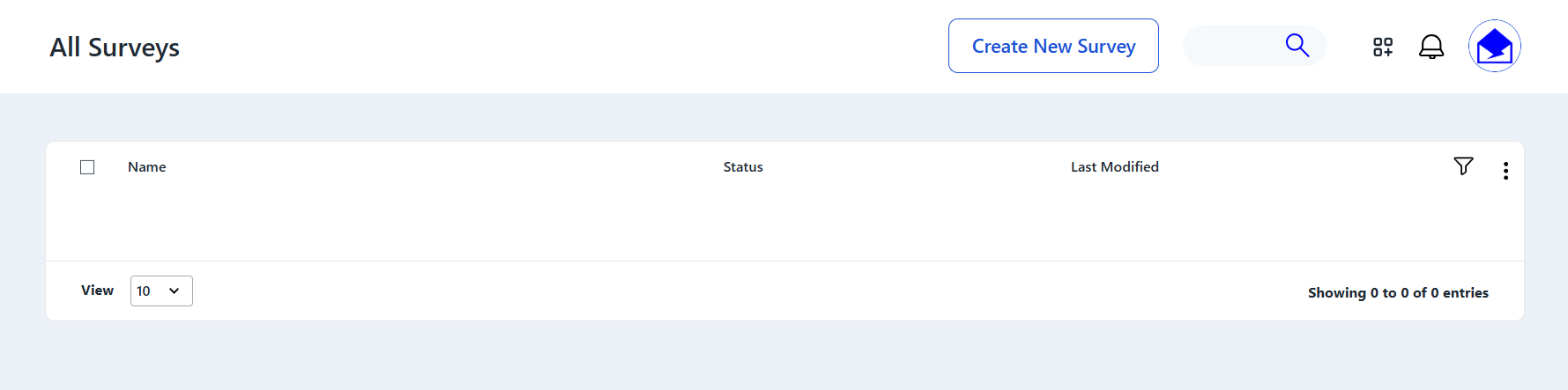
Start by going to Surveys > All Surveys then click on the Create New Survey on the top right corner.
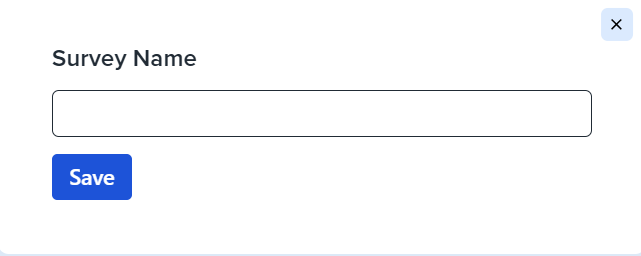
Set your Survey Name, which helps you easily identify and manage your surveys, and click Save.
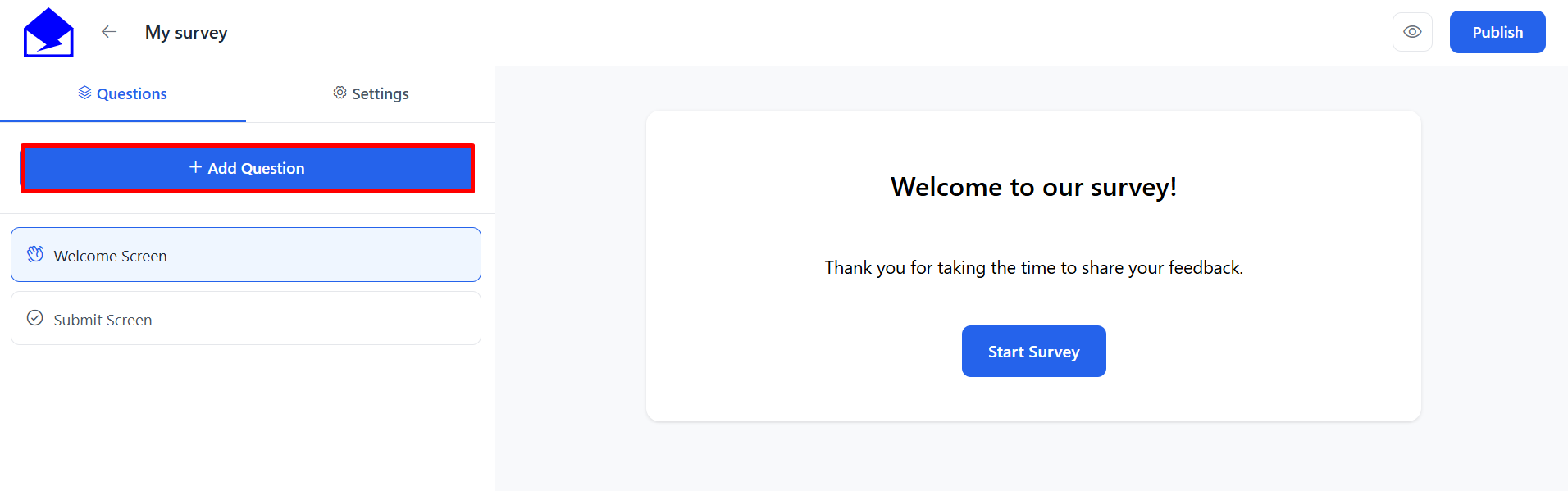
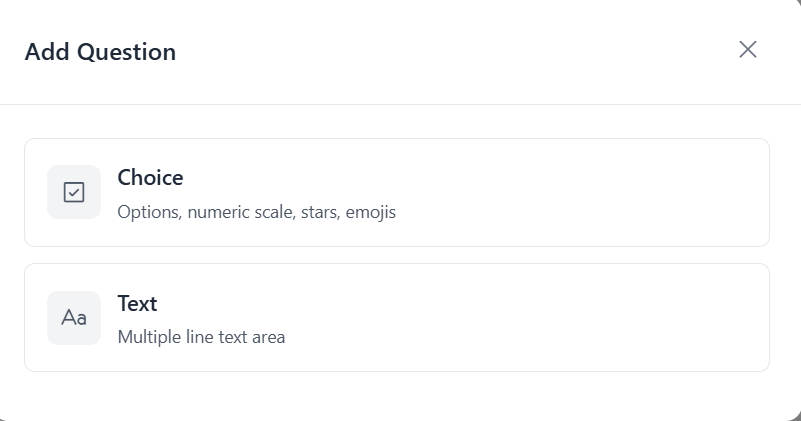
Then, build your survey by adding questions. You can choose between choice-based questions - including radio buttons, emojis, yes/no options, and star ratings - or text questions, where recipients can provide open-ended answers.
Once your questions are ready, customize the look of your survey by adjusting colors to match your brand and email design. This ensures a consistent and visually appealing experience for your audience.
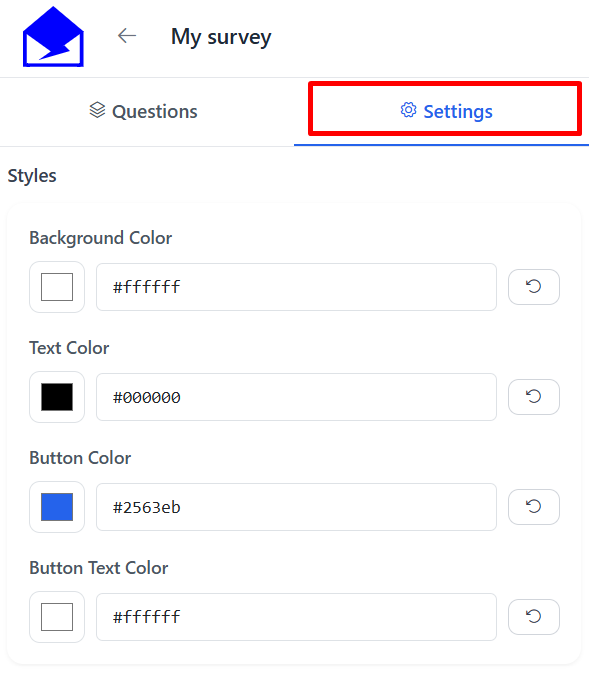
After compleeting the Survey design you are ready to publish the survey, all you need to do is click the Publish button in the top right corner.
After publishing your survey, you can click the arrow on the top left corner with the survey name to get to all the surveys and you will se le survey status as live and also edit delete or disable the survey by clicking on the 3 dots in the top right corner.

You can embed it into your email templates and track responses through detailed reports, helping you better understand your contacts and improve future campaigns.
See Also: