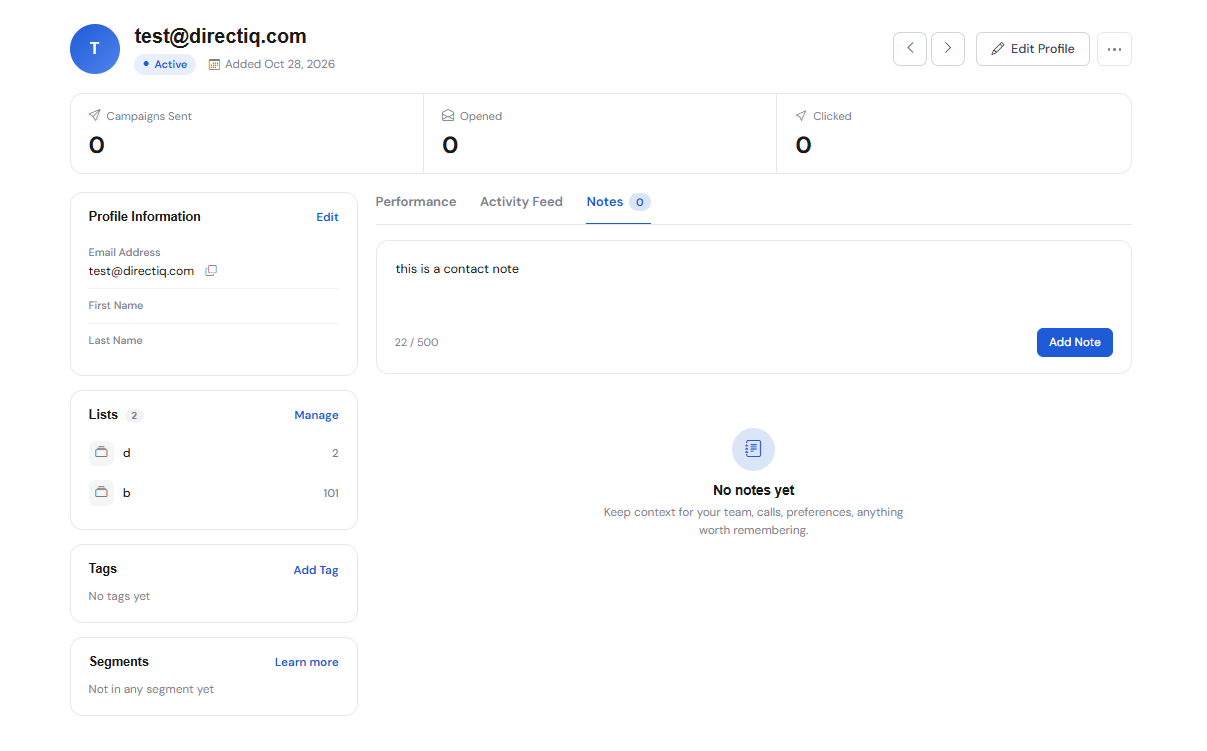
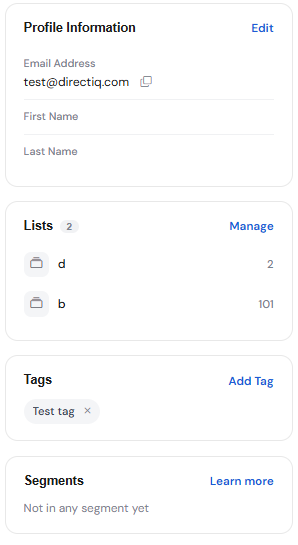
DirectIQ allows you to manage selected contact on the Contact Details page. To open this page click on the contact email or View button on the 3 dots menu on the right side of the contact.
Edit contact profile
In order to change contact details click Edit Profile on the top right corner of the page.
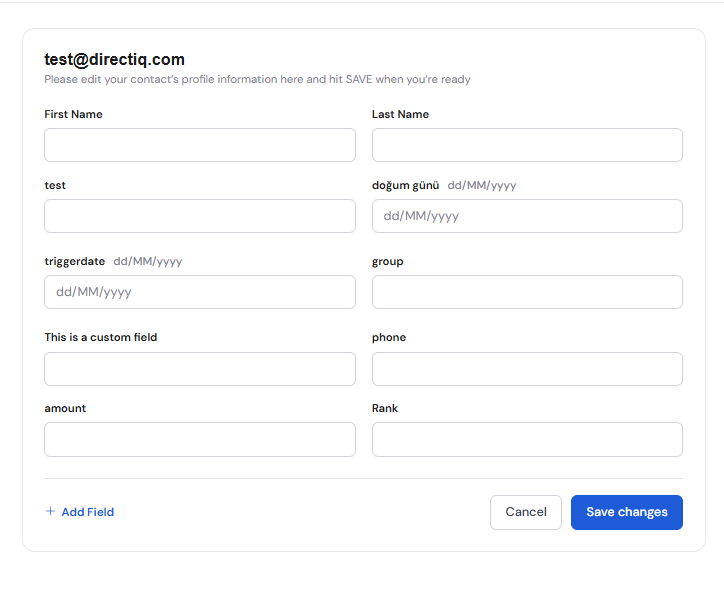
A dialog box for editing contact fields will open. Update contact information and click Save Changes.
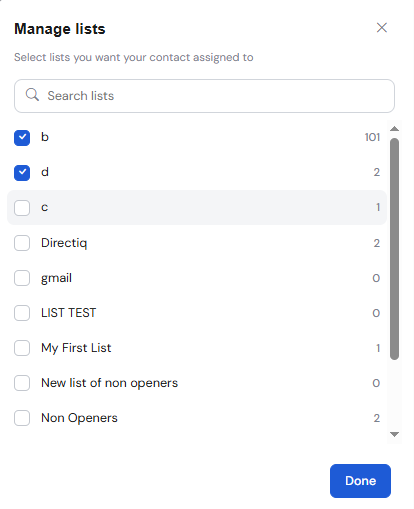
Select lists to which the contact is assigned
You can view the lists to which the selected contact belongs, as well as manage these lists in the Lists section.
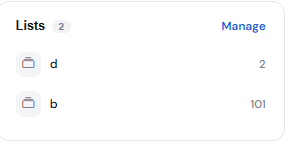
Select manage button if you want to see all lists to which the contact belongs. You can add a contact to the list by selecting the check box on the left of the list name or remove a contact from the list by unselecting the check box.
Manage contact tags
You can add tags to contact or delete them. To do this scroll to the Tags section on the right of the Lists section.
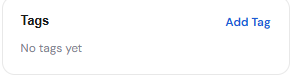
To add a tag click Add Tag. The following dialog will open.
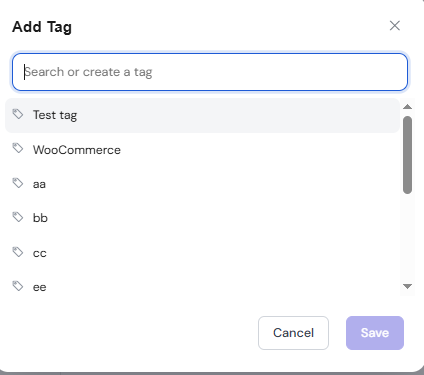
You can select a tag from the drop-down list or add a new one. After you finish editing tags click Save.
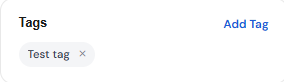
You also can removealready added tags by clicking on the cross on the right of each tag
Manage Segments
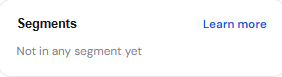
You can see a list of segments to which contact belongs in the Segments section located under the Tags section.
Edit profile information
To edit contact profile information go to the Profile Information section located over the Lists section and click Edit.
A dialog box in which you can edit the required fields will open. After editing click Save changes.
See also:
Managing Contact Record