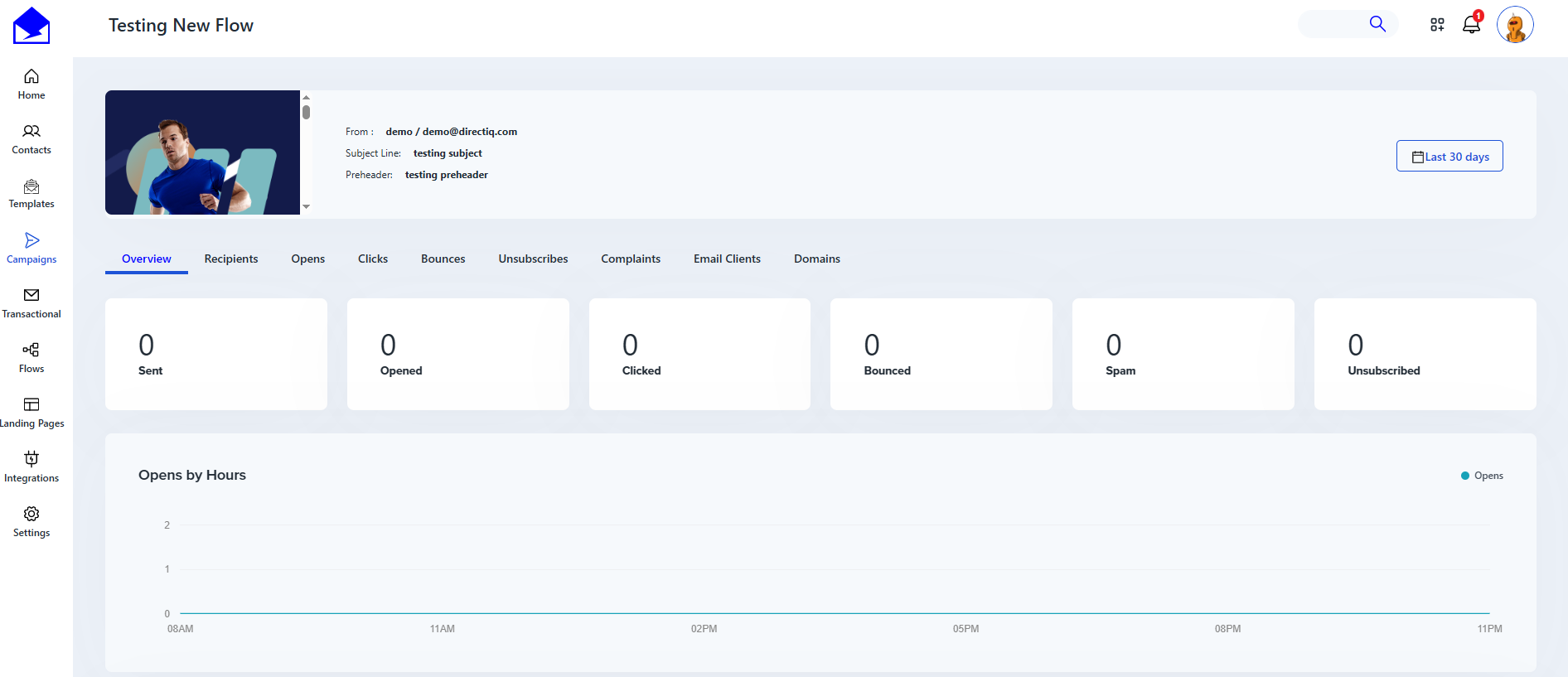
To access Flow Reports Go To Flows > My Flows, your flow must be live. If a flow is still in draft mode or hasn’t been activated yet, the Reports button will appear grayed out and unavailable. Once the flow is published, you’ll be able to open its reporting dashboard and view performance metrics like recipients, opens, clicks.
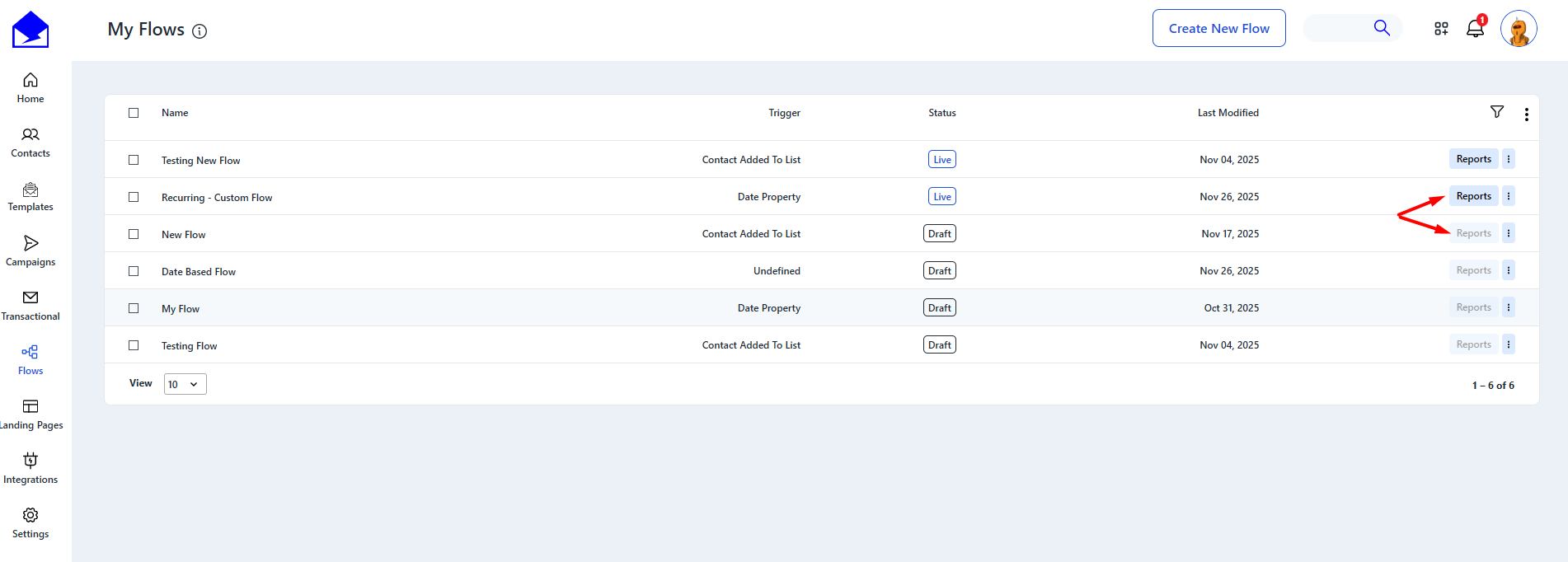
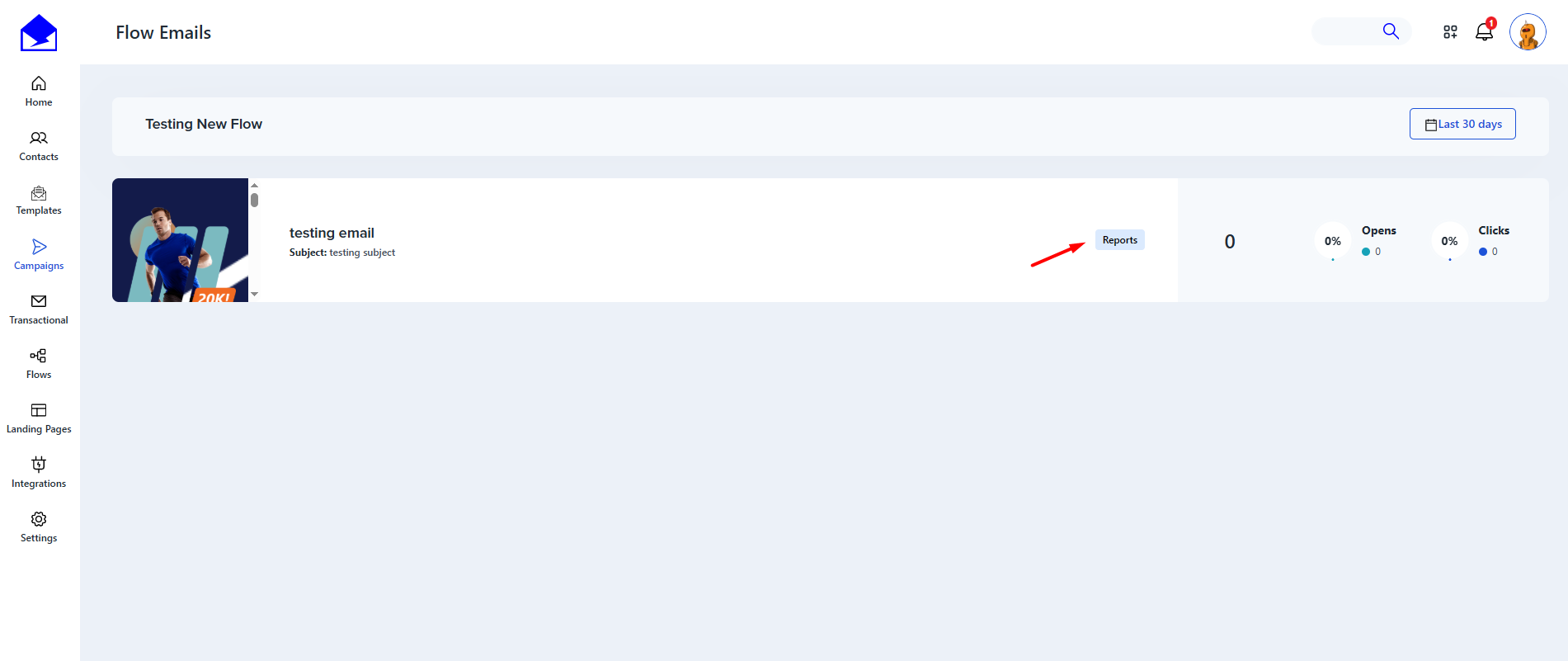
After clicking the reports button on the My Flows page, you will see all the email nodes of the flows, from there you must click the email node reports button and then you will see the reports details for that email.
You can access the flow reports even from the flow itself by clicking the Flow name like in the image below:
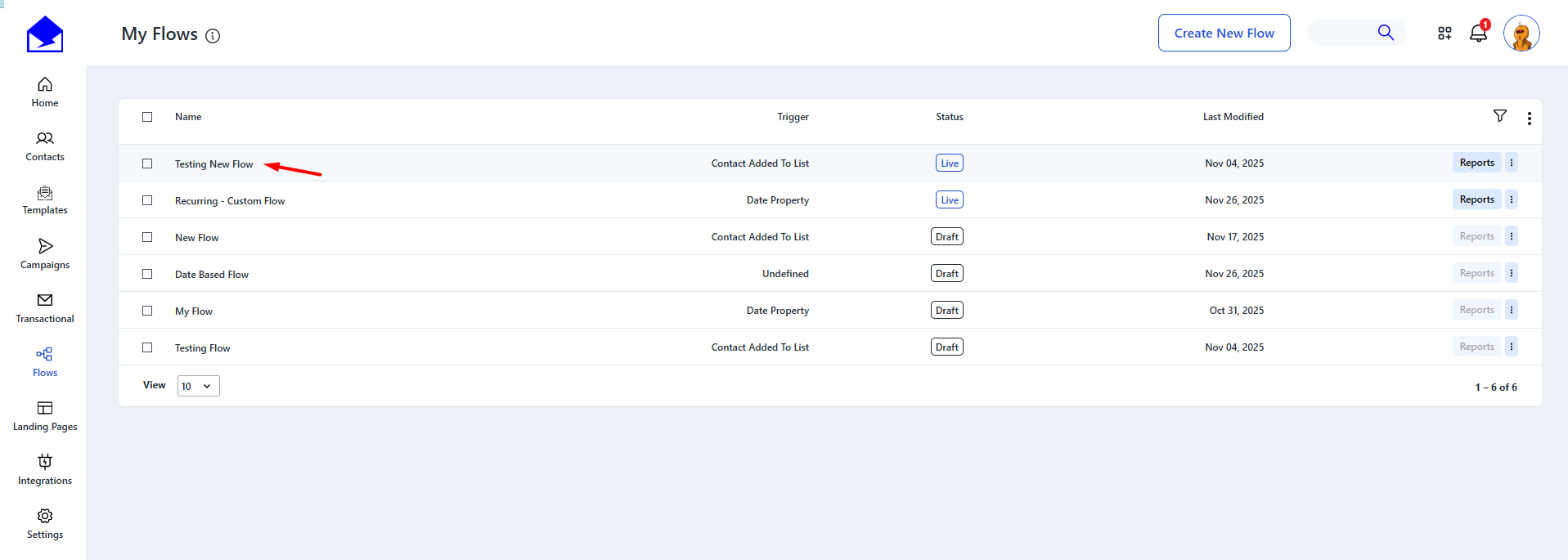
then click on the live button and then on the reports icon on the top right corner like in the image below:
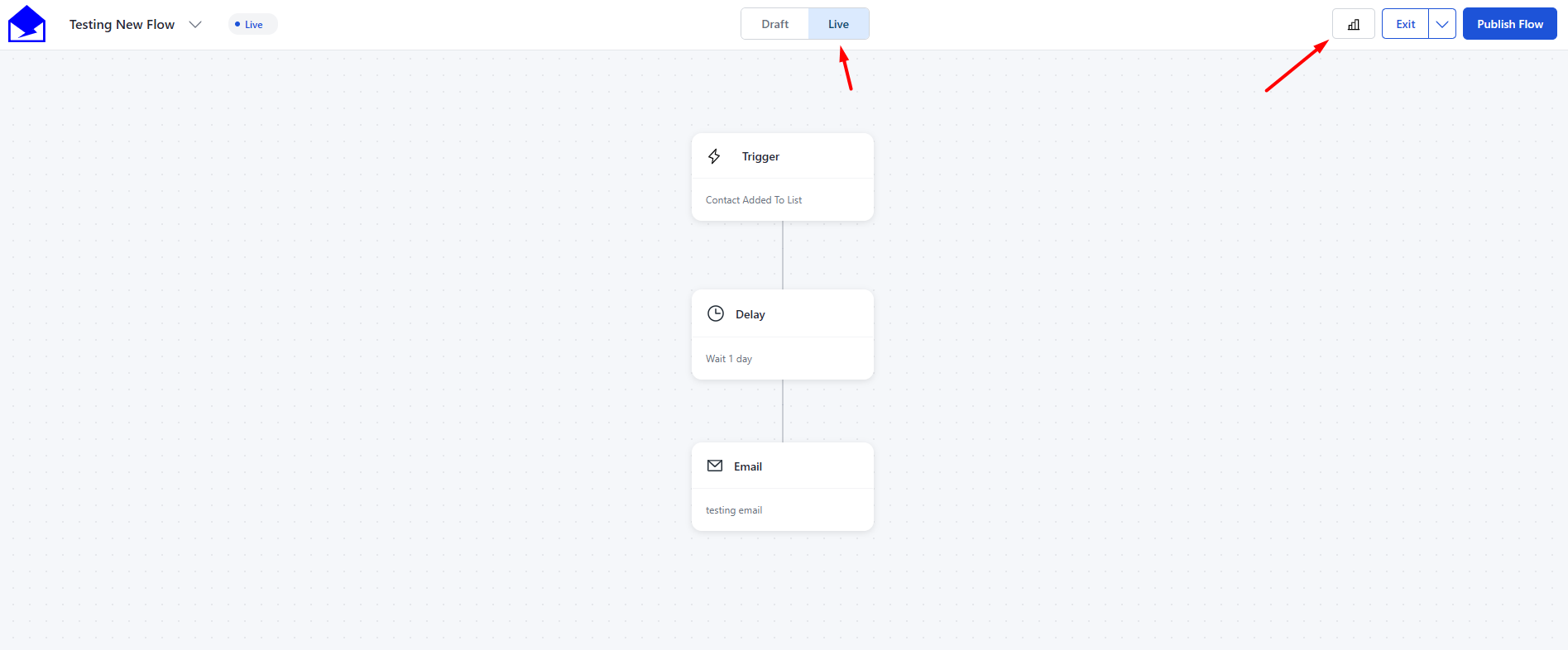
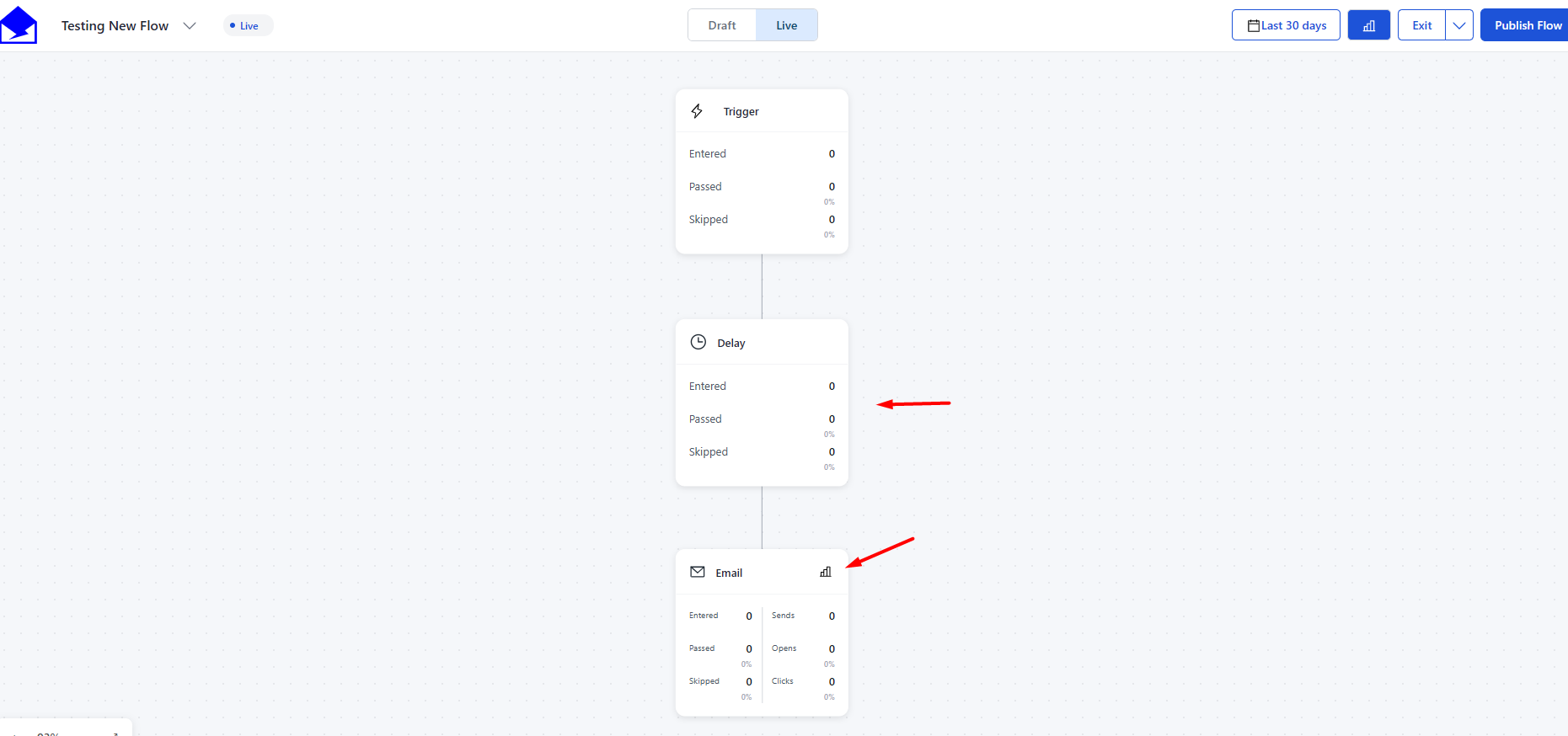
there you will be able to see statistics for each email node (ex: number of contacts that entered etc) by going to the desired email node you can click on the reports icon on the top right part of the email node or the statistics number, ( EX: click the opens number and it will redirect you to the email node reports page) :
Flow Reports give you a clear, real-time view of how your automations perform, helping you understand what works and what needs improvement. By monitoring key metrics and optimizing each step, you can keep your flows efficient, engaging, and aligned with your goals. With accurate reporting and easy access to data, improving your email automation becomes simple and scalable.
How To Set Up Campaign Recipients