To improve email delivery performance, we strongly recommend adding 4 DNS entries to your sending domain's DNS server. With these settings in place, you'll increase your chances of hitting the inbox and avoiding spam categorization.
To set up your domain go to Settings -> Senders & Domains and find the section Sending domains. Then click Add Domain to the right of Senders & Domains.
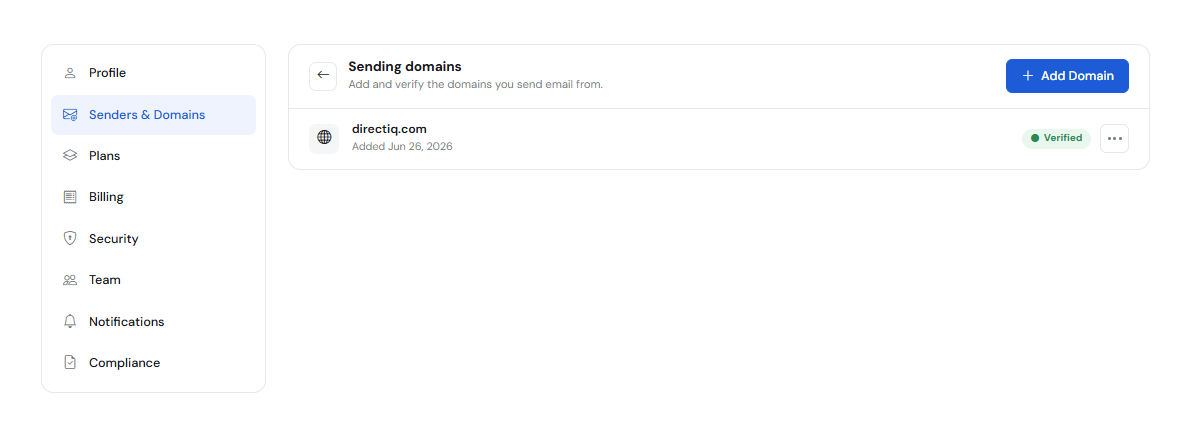
Connected Domains page with a list of domains will open. Here you can see the domain name and status.
Connect a new domain
To connect a new domain click Add Domain.
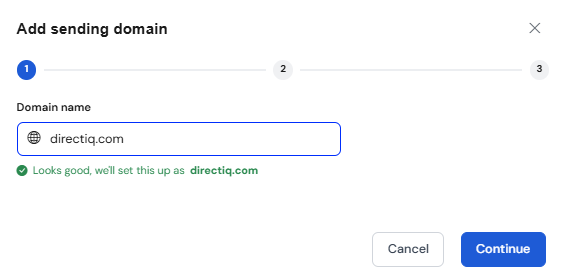
In the dialog box, that opens, enter the domain name and click Continue.
The dialog with your custom DNS settings for the entered domain name will open. You need to fill in these settings in your hosting provider or domain host.
If you don't have access to your domain control panel, or you don't feel comfortable doing these settings, contact the customer support of your hosting provider.
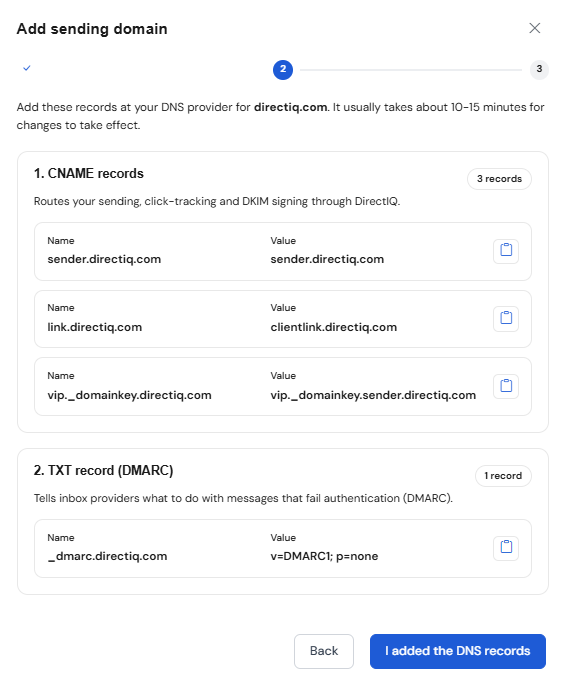
Once you set these settings in your domain panel, click Verify domain to verify them. The red marker to the left of each setting will switch to green once the settings are verified.
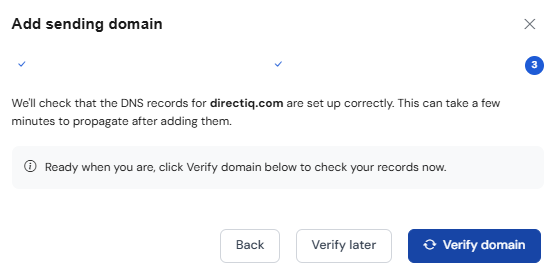
DNS changes may take up to 24 hours, so, you may have to wait before authenticating. You can leave this page, and come back later to authenticate.
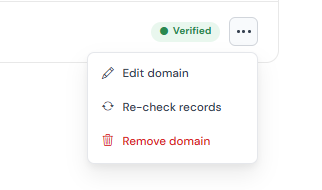
Edit domain
To see custom DNS settings for the domain name click on the manage icon (icon with pencil) in a row with the domain. You can authenticate them if you haven't done it before.
Re-Check records
If the changes are no yet applied you can check by clicking Re-Check records.
Remove domain
To delete the domain click on the delete icon (icon with trash) in a row with the domain.
See also:
How To Manage Account Information