To manage sender email addresses, that you use in your marketing campaigns, first go to Settings -> Senders & Domains > Senders.
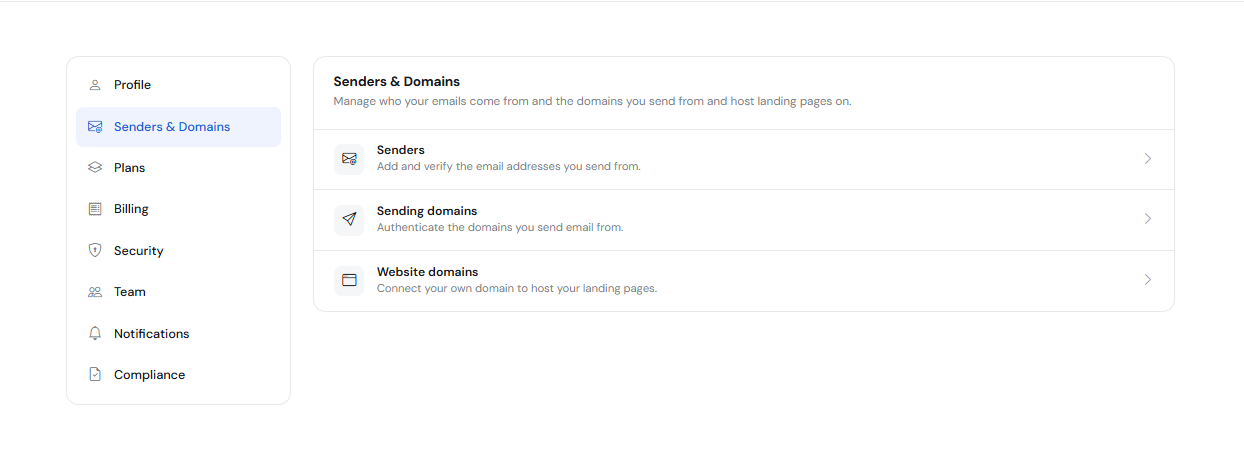
Senders page with a list of senders will open. Here you can see the email, name, and authentication status for each sender.
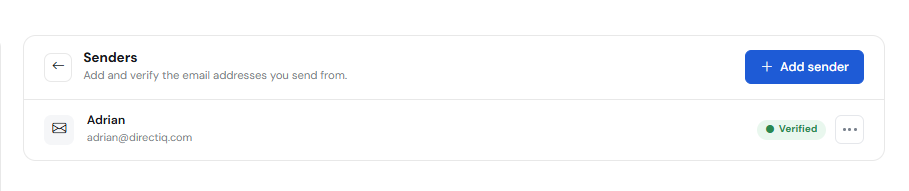
Create a new sender
To create a new sender follow these easy steps.
Click Add Sender under the table with a list of senders or at the top right corner.
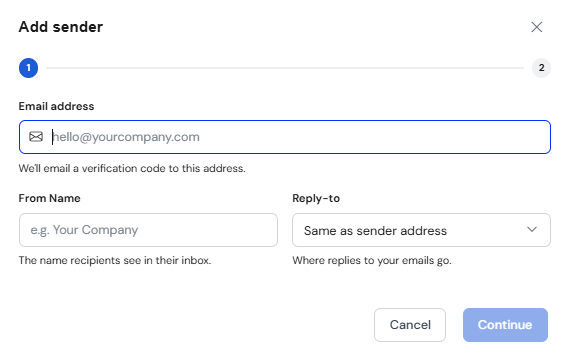
Fill in the sender's email address and name and click Continue.
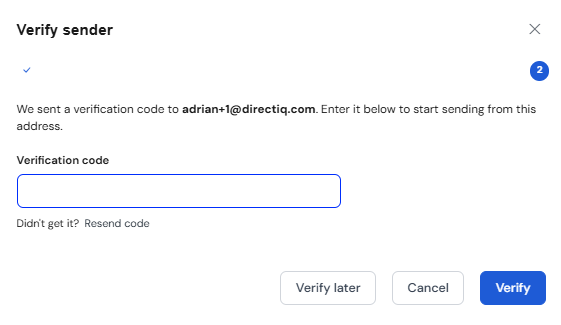
3. Email with verification code will be sent to the entered address. Enter this code and click Verify.
4. Once the email will be verified a new sender will appear in the table.
If you do not verify the email it will appear with the status Pending.
Edit sender
To edit the sender click on the edit sender icon (icon with pencil) in a row with the sender.
You can edit the sender's email address or name. If you change an email you need to verify a new one.
Delete sender
To delete the sender click on the delete sender icon (icon with trash) in a row with the sender.
See also:
How To Manage Account Information