DirectIQ allows you to manage contact notes on the Contact Details page. To open this page click on the contact email or View button on the All Contacts page.
To see all contact notes go to the Contact Details page and select the Notes tab.
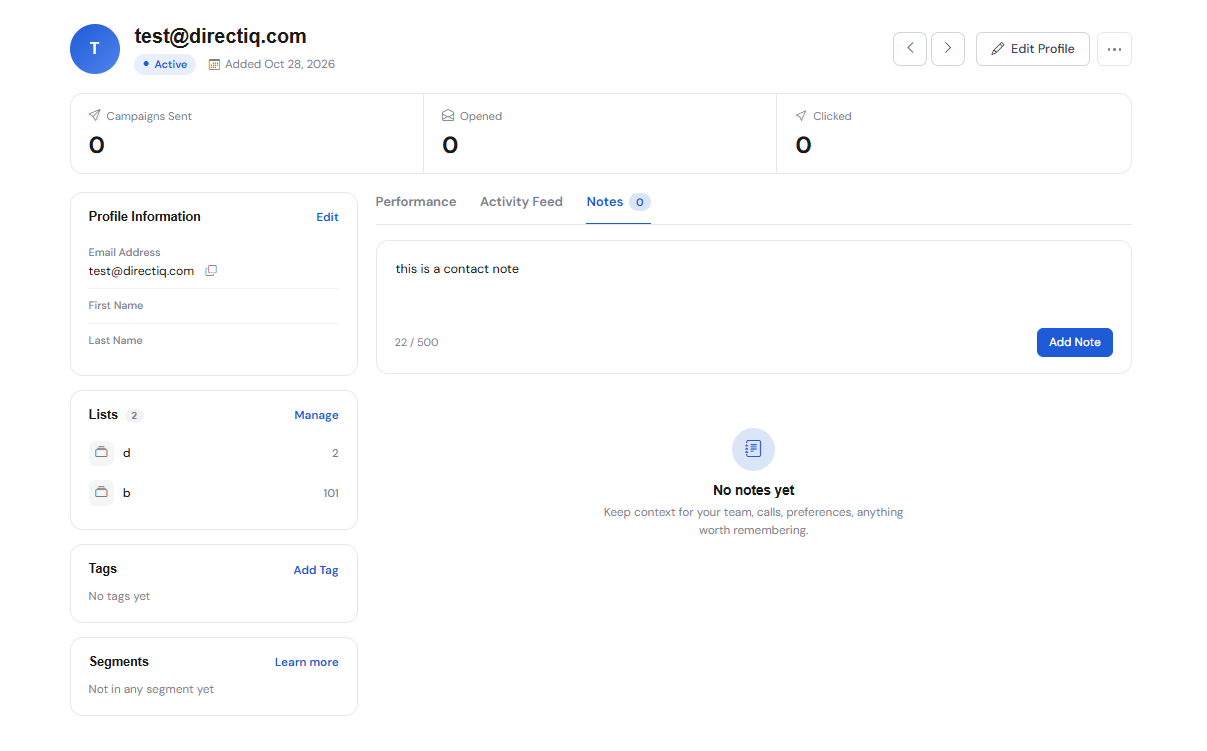
Add a new note
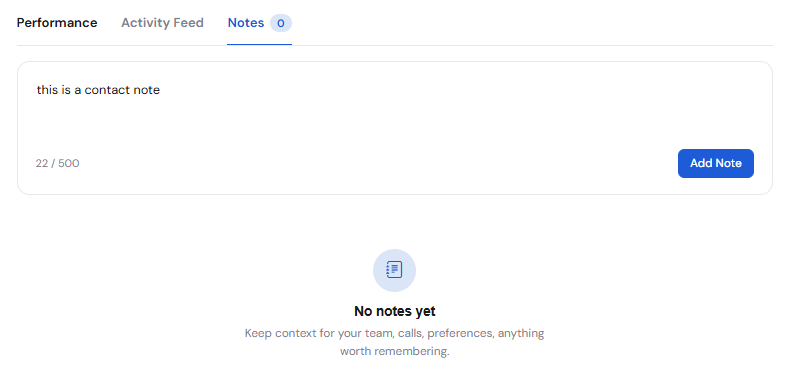
To add a new note type the text description you want for that specific contact then click Add Note.
Edit a note
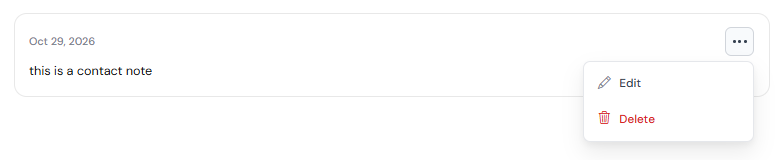
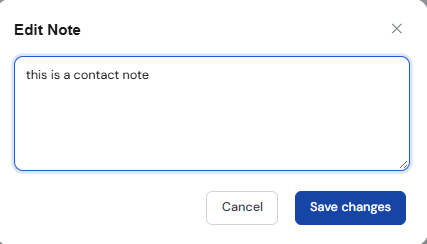
You can edit saved notes by clicking on the 3 dot icon then click Edit near the icon with a pencil. Edit note dialog will open. Change the text and click Update.
Delete a note
To delete a note click on the delete icon with trash under the 3 dots menu of the note and click Delete in the confirmation dialog which will appear.
See also: