DirectIQ allows you to process several lists at the same time. Go to Contacts -> Contact Lists. Select the checkboxes in the first column near lists you want to work with. Then click on the menu button, that located at the end of the line with the column headers, to open the context menu.
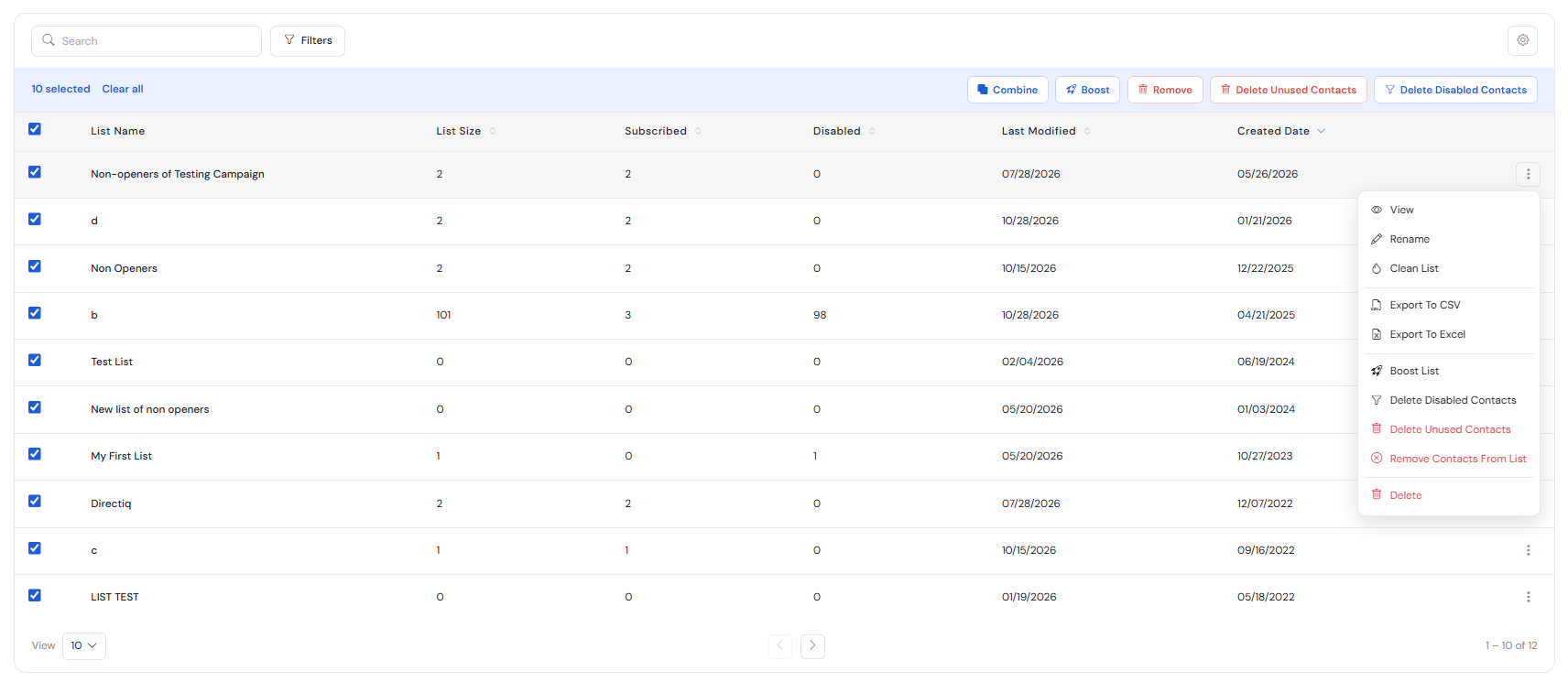

Delete Disabled Contacts
Click Delete Disabled Contacts in the context menu to remove all disabled contacts from selected lists. Then click Delete in the dialog to confirm this action. After the contacts have been successfully deleted, a notification with a successful message will appear at the top of the page.
Combine Lists
You can combine contacts from the different lists into a new one. To do this select lists and click Combine Lists in the context menu. Then click Sure in the confirmation dialog. A new list with all unique contacts from all selected lists will be created with the default name Combined(names of all selected lists). A successful message will appear at the top of the page.
Boost Lists
In order to maximize your list quality there is a need to always check reports and engage in managing contact lists. DirectIQ has automated this process introducing Boost Lists. Boost lists allows you to extract the best qualitative contacts of a list (openers in the last months, 1 week, 2 weeks, 1 month, 3 months, 6 months)
Note: A list might be very large and boosting might take a while running in background.
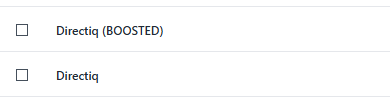
After deciding to boost a list a newly created list named exactly as the original list is saved with the difference of the text (BOOSTED) at the end.
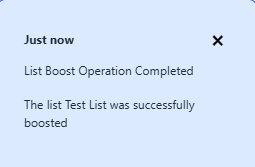
After boosting is completed you receive a notification as shown in the image:
How to boost a list?
1 - Select the list you want to boost
2 - On the top right part where list actions will appear, click Boost:
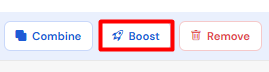
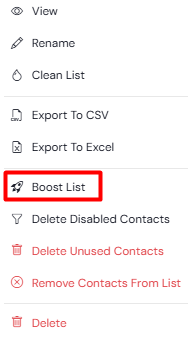
In order to highlight the most important contact lists and have a higher performing list click Contacts>My Lists and on the 3 dots menu on the right side of the list click on Boost List in the context menu.
Delete Lists
You can delete several lists at the same time. To do this select lists and click Delete Lists in the context menu. Then click Delete in the confirmation dialog. All selected lists will be deleted and a successful message will appear at the top of the page.
See also: