To create a segment open the Contacts -> Segments page and select the first tab Create Segment.
Step 1
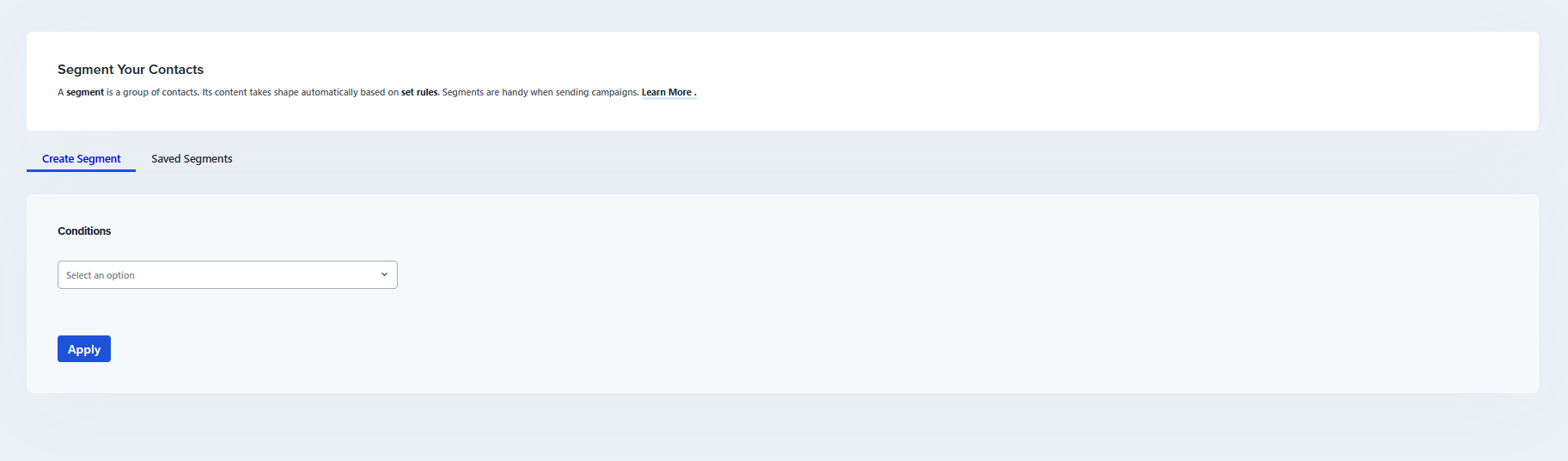
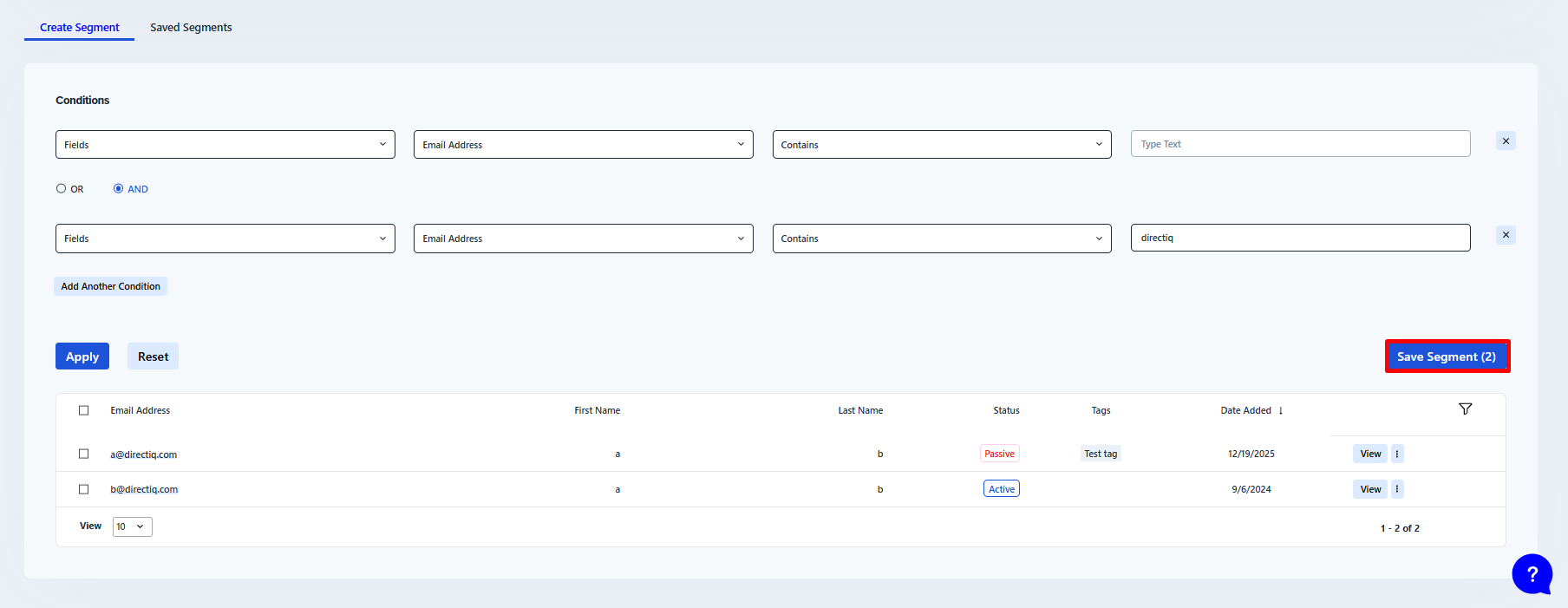
First, you need to create a condition, by which contacts will be included in the segment. You can select any field or quality of contacts to filter.
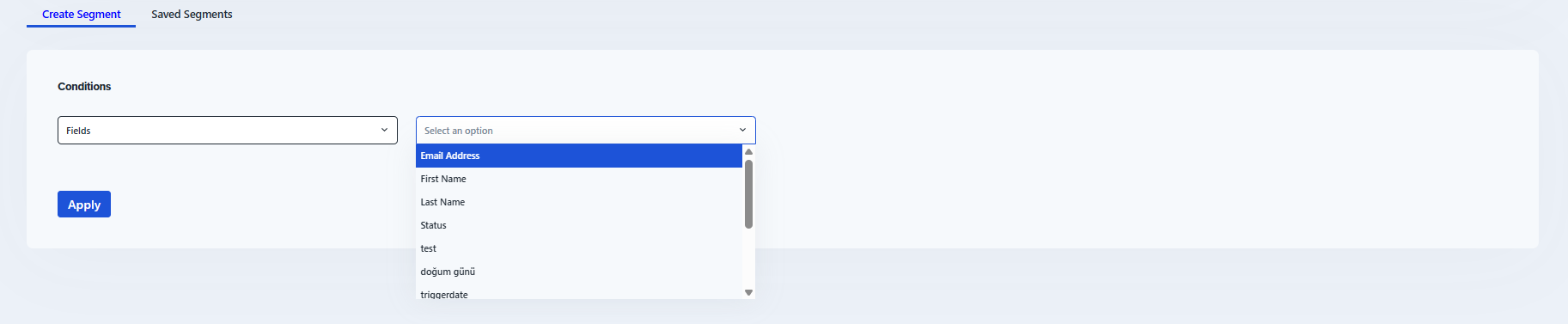
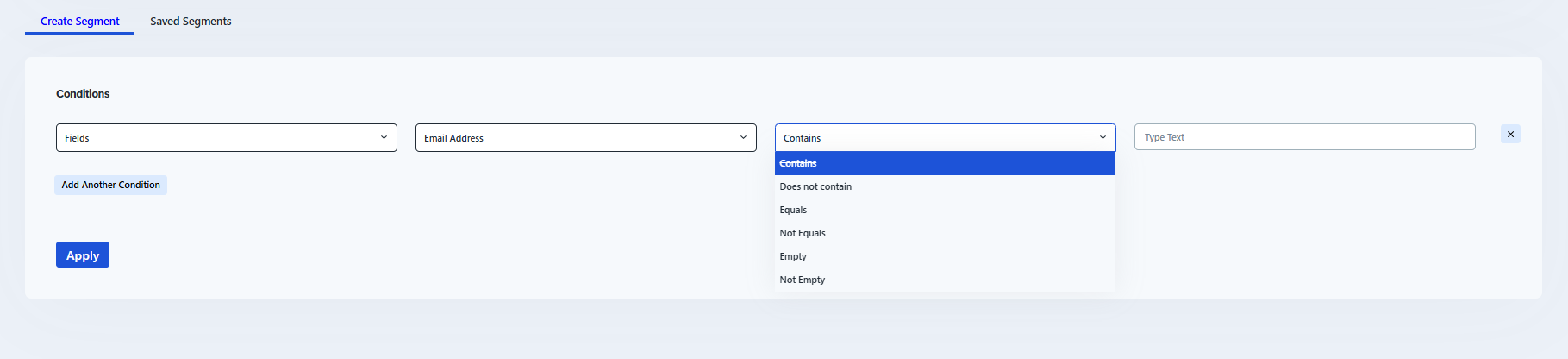
It is also possible to add multiple conditions to the segment. Click Add Another Condition under the row with the last condition and a new row will appear.
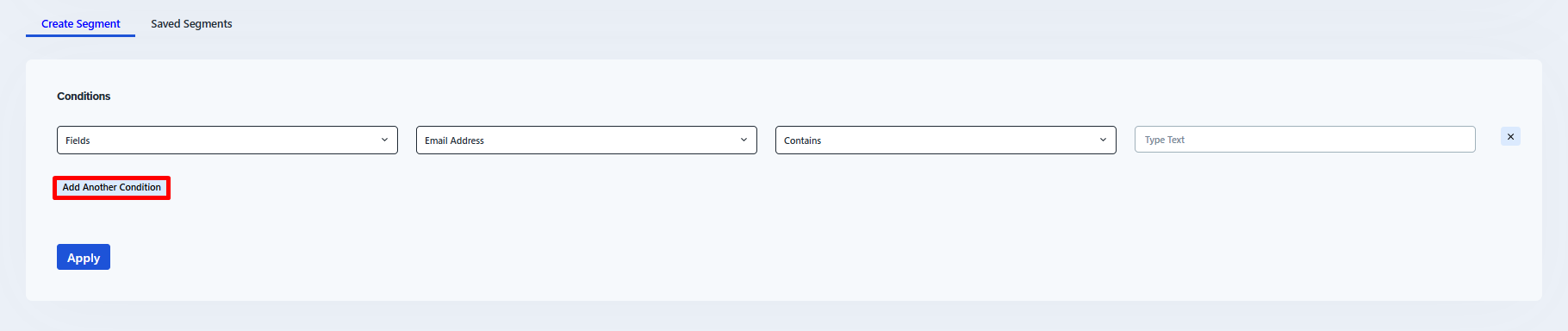
If you have created several conditions, you can choose which conditions the contacts should match, all or at least one. To do this use a radio button with options "OR" and "AND". To remove a condition click on the cross at the end of its row.

If you have created all conditions you want, then click Apply in the bottom left corner to see a list of contacts, that will be included in the segment based on the conditions.
Click Reset to delete all conditions.
If you have created all the conditions correctly and want to save the segment, click Save Segment.
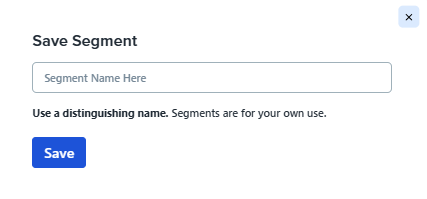
In the dialog box, that will appear enter the segment name in the text field and click Save. The list of segments will be automatically reloaded and you will see a new segment.
See also: