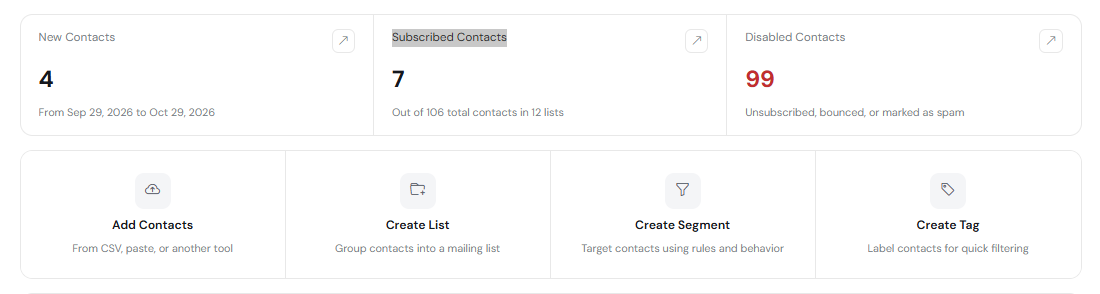
DirectIQ allows you to filter contacts by status, tags, date added, and all fields. First, open the All Contacts page by going to Contacts > Contacts overview > Subscribed Contacts > then click the All Contacts tab. Click the button with the filter icon located at the end of the line with the field names to see the filter line.

You can select values to filter from the drop-down list for fields such as status, tags, date, or enter a value in the text box for fields such as email, first name, last name. The list of contacts is automatically updated after selecting a value from the drop-down list or after entering at least three characters into a text field.
If you click on Clear all, then all filters will be reset.
See also:
Managing Contact Record