If you want to add a small number of contacts to the list, you can use the form, that allows you to add contacts one by one on the Add Contacts page. Open this page using one of two ways.
Go to Contacts -> Overview and click Add Contacts in the right upper corner.
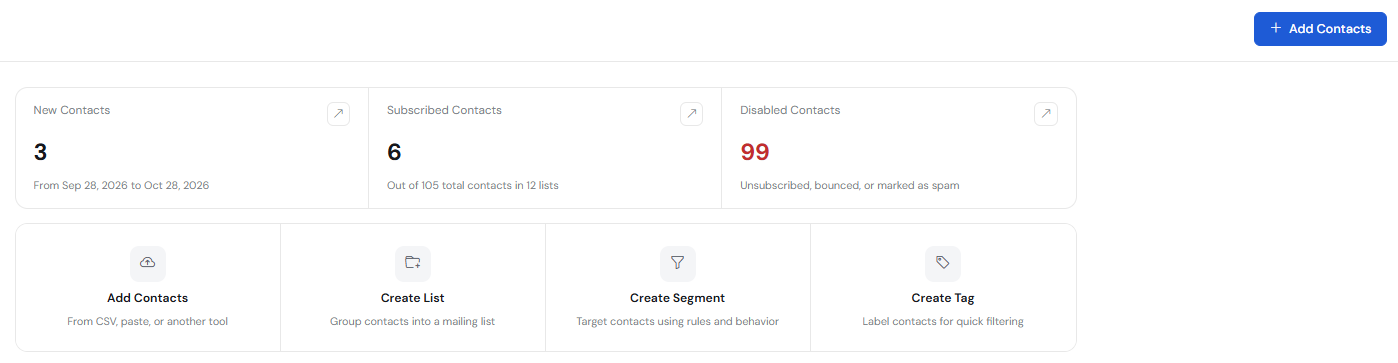
2. Go to Contacts -> Add Contact.
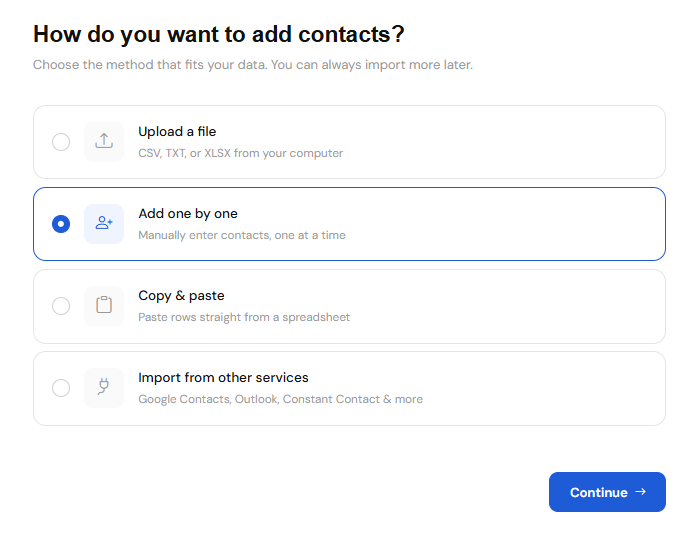
Then select the second tab Add One by One then click Continue.
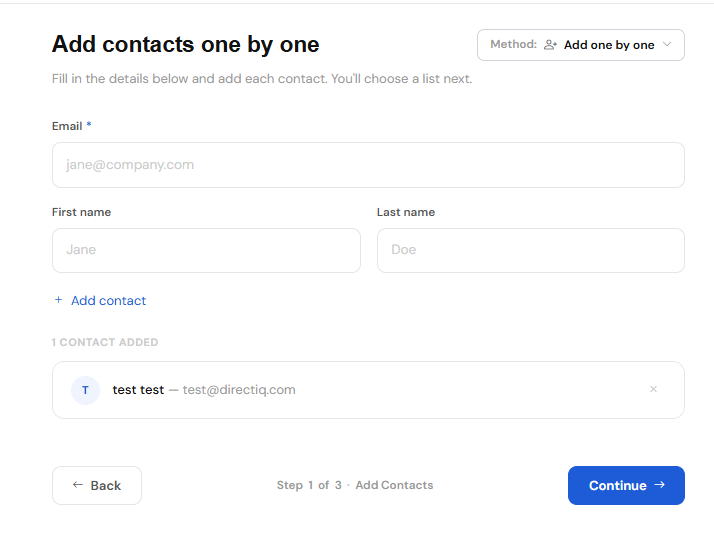
The Email Address field is required, fill it in. If you wish, you can also fill in optional fields. To see custom fields click Show More Fields in the right corner.
when you have inserted all contact data Click Add contact on the left and that contact will be ready for import.
After you add all the contacts you want, click Continue in the right bottom corner.
Next, select the list to which new contacts will be added. You can create a new list by entering its name in the text box on the left side of the page or select an already existing one on the right side of the page to add contacts. After selecting the list click Continue.
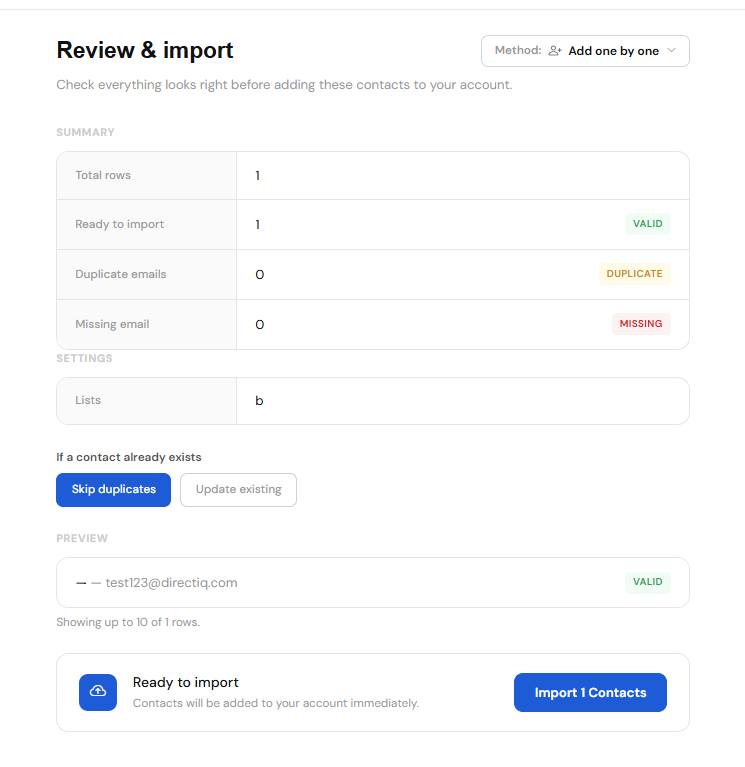
The review & import page allows you to import the already existing contacts without making any change to the data in the system and not update them or by clicking Update existing the already existing email contact data like firstname lastname tags etc will be updated with the new ones in the imported file.
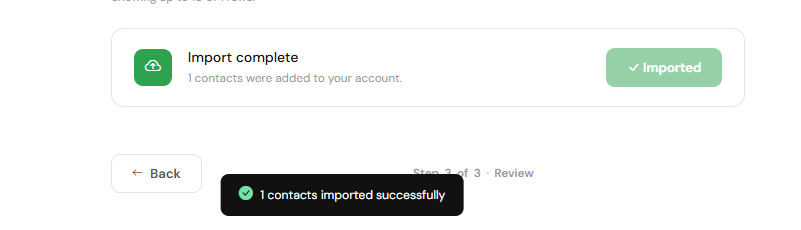
NOTE: During the upload process, all duplicate and invalid email addresses are automatically eliminated.
See also:
Adding Contacts Using Copy And Paste