If you have a business that you promote by sending out marketing emails to your potential customers, then you probably know that the creation of email design, writing contact lists and sending emails takes a very long time. DirectIQ is created in order to simplify this difficult task for you. We offer you the following benefits:
Convenient interface for importing contact list.
Lots of ready-made templates that you can use to create your marketing emails.
The ability to upload your ready-made templates.
Creation of campaigns that will be sent according to your schedule.
The ability to create automated campaigns.
The ability to view various reports about sent campaigns.
Account Creation
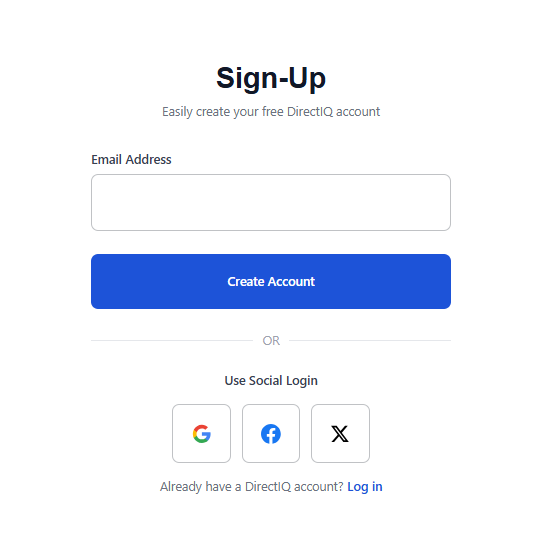
To get started with DirectIQ go to https://app.directiq.com/ and click Create an Account.
The Sign-Up page will open. Enter your email address and click Create Account.
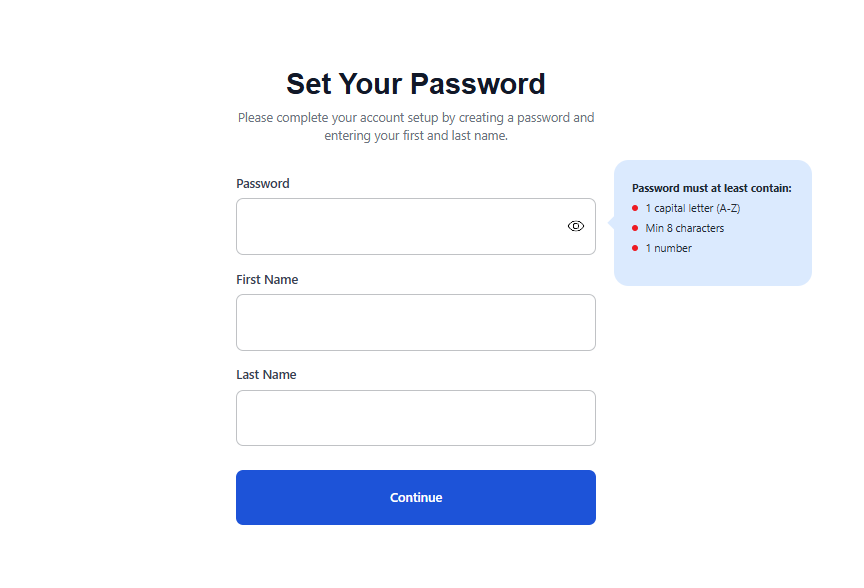
At the next step you need to set up your password and optionally you can fill in your first and last names.
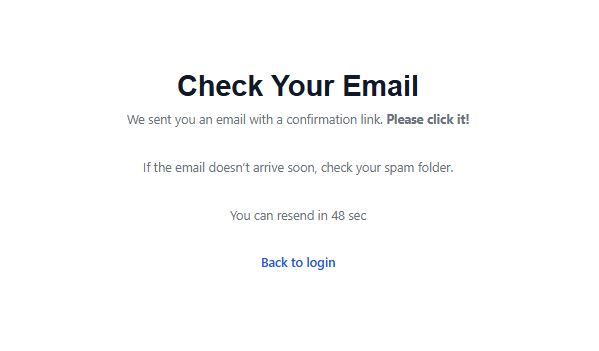
After that, a verification email will be sent to your email address.
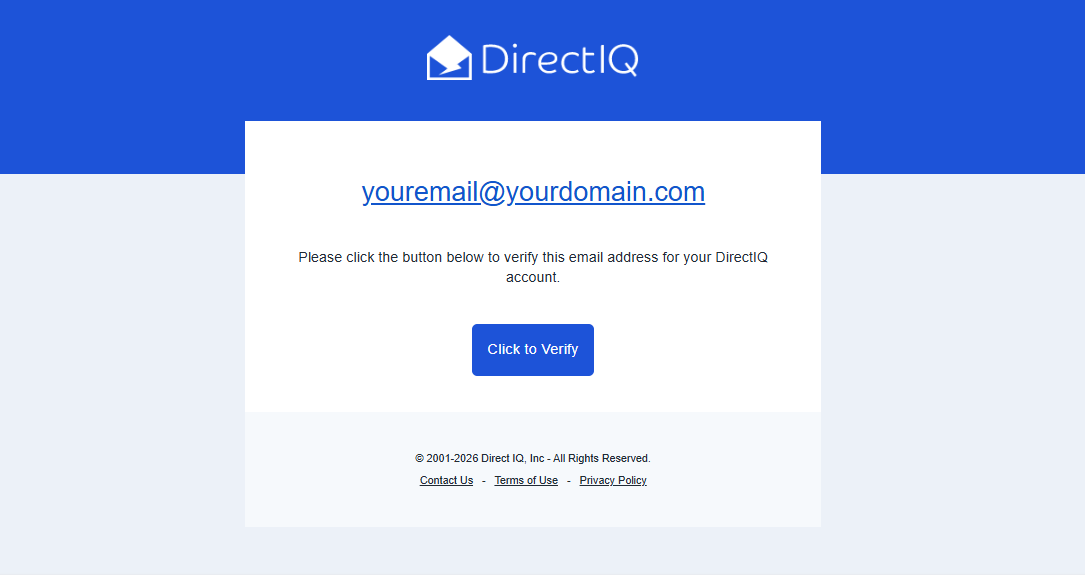
In order to start working with DirectIQ open this email and click Click to Verify.
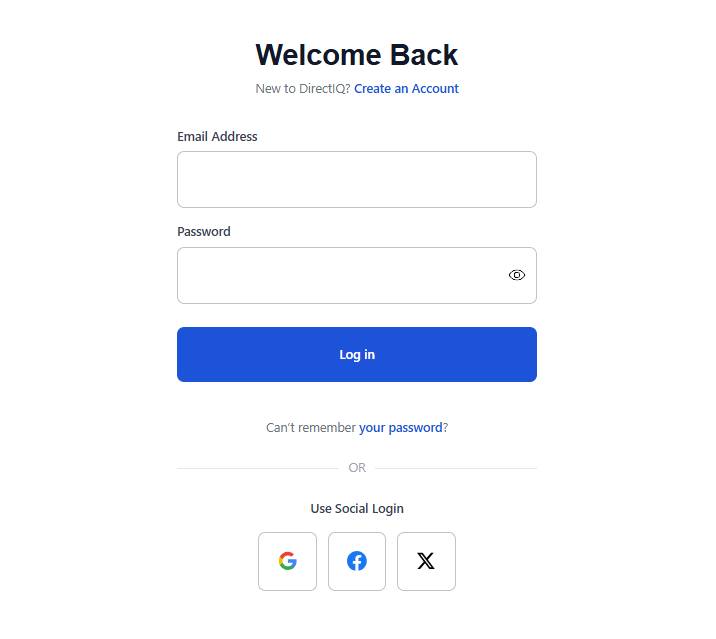
After email verification Login page will be opened. Enter your email and password and click Login.
Upload Contact List
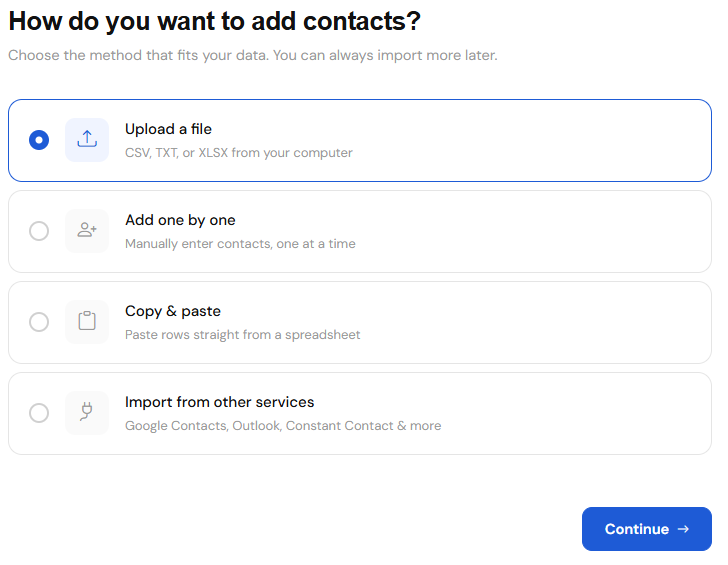
If you store your contact lists in Microsoft Excel (XLS, XLSX) or Text (CSV, TXT) files, you can easily upload them into DirectIQ. To do this go to Contacts -> Add Contacts Then select the first tab Upload File.
Step 1
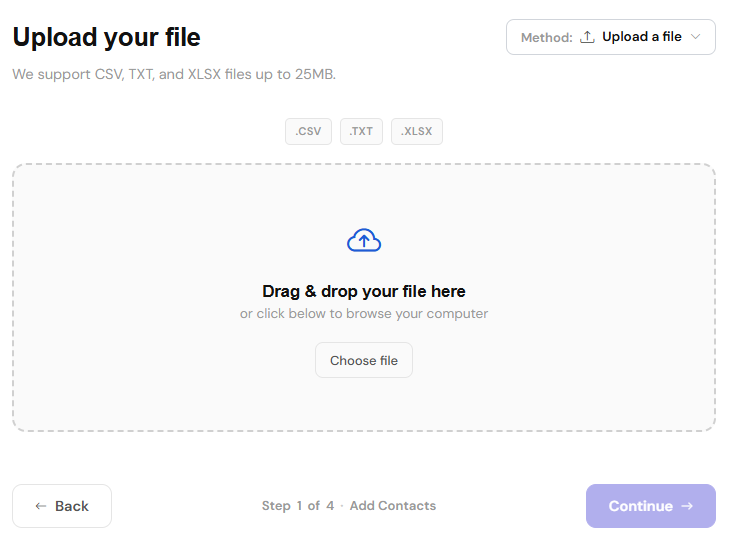
In order to select files to download click on the large rectangle in the middle of the page or use drag and drop.
Important! Before uploading check, that the file format meets the system requirements. Read more about Accepted File Formats For Uploading Contacts.
Step 2
After uploading the file, Click the Next button to go to the next page. At this page, you need to match the column name with loaded data. At the top of each column, select the required name from the drop-down list.
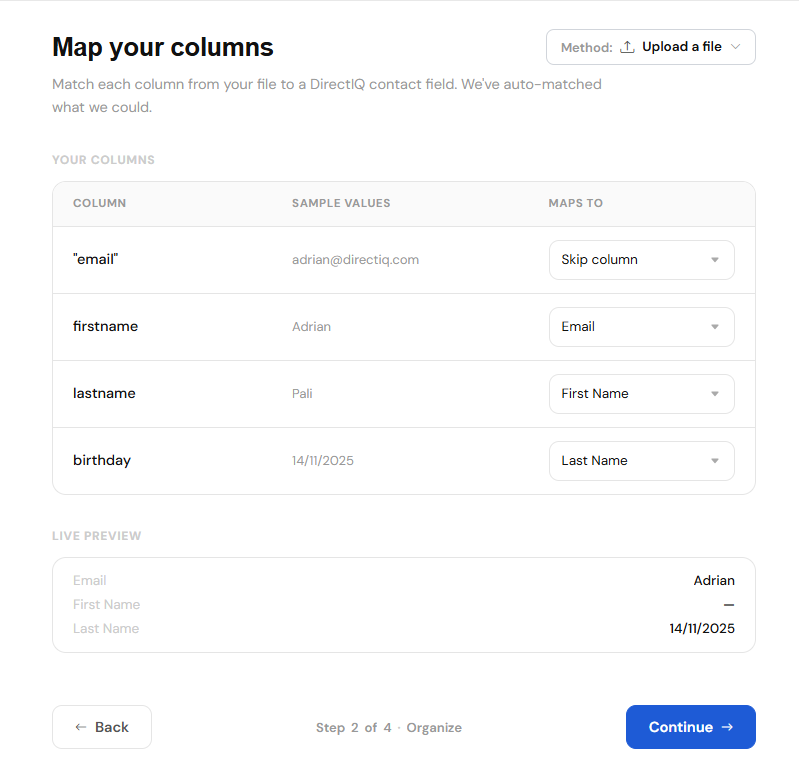
You can exclude some columns from contacts by selecting Skip Column from the drop-down. After all the column headers are selected, click Continue in the bottom right corner.
Step 3
Next, select the list to which new contacts will be added. You can create a new list by entering its name in the text box by clicking on the left button "New List" or select an already existing one on the right button "Existing List" to add contacts. After selecting the list click Continue in the bottom right corner.
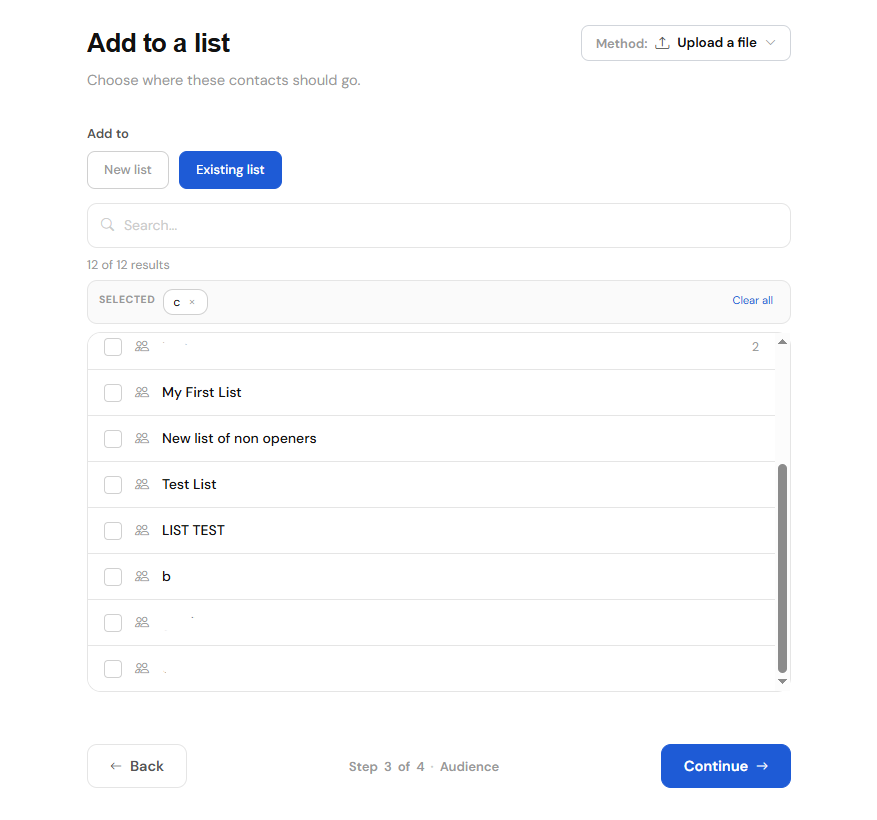
Step 4
On the review and import page you can see the contact information like total rows, valid contacts ready to import, duplicates etc by clicking skip duplicates the contact will not be uploaded and it will remain unchanged, if you want to edit the contact aalready present in the list with the new contact data click on update existing so all existing contacts data will be replaced except the email.
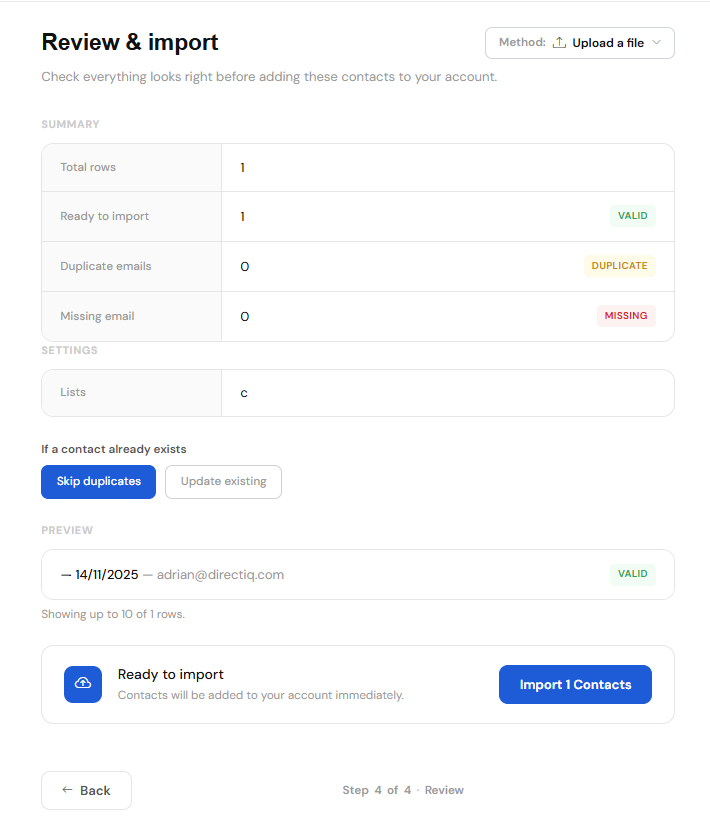
After creating contacts, you will see the following banner:

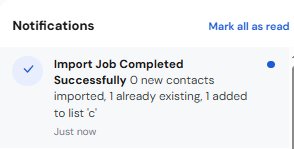
The import will continue, after the list is imported then you will receive a notification :
Design a Template
DirectIQ has a large list of thematic templates, that you can choose, edit and use for your marketing campaign. To open it go to Templates -> Create Template and select the first tab Use Free Templates.
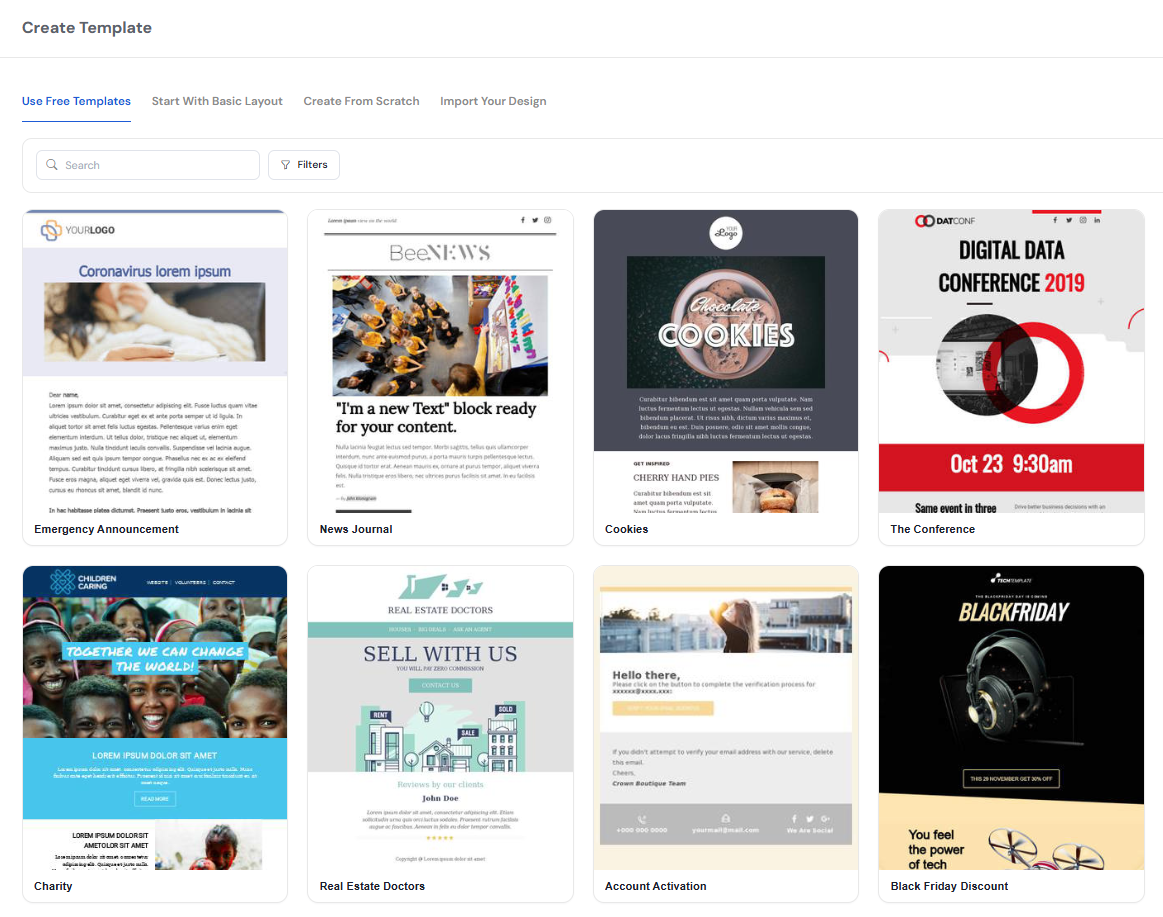
You will see a lot of templates from different usage categories. All templates are tagged. To quickly find the template you need, use our easy filter.
You can preview the template by clicking on it.
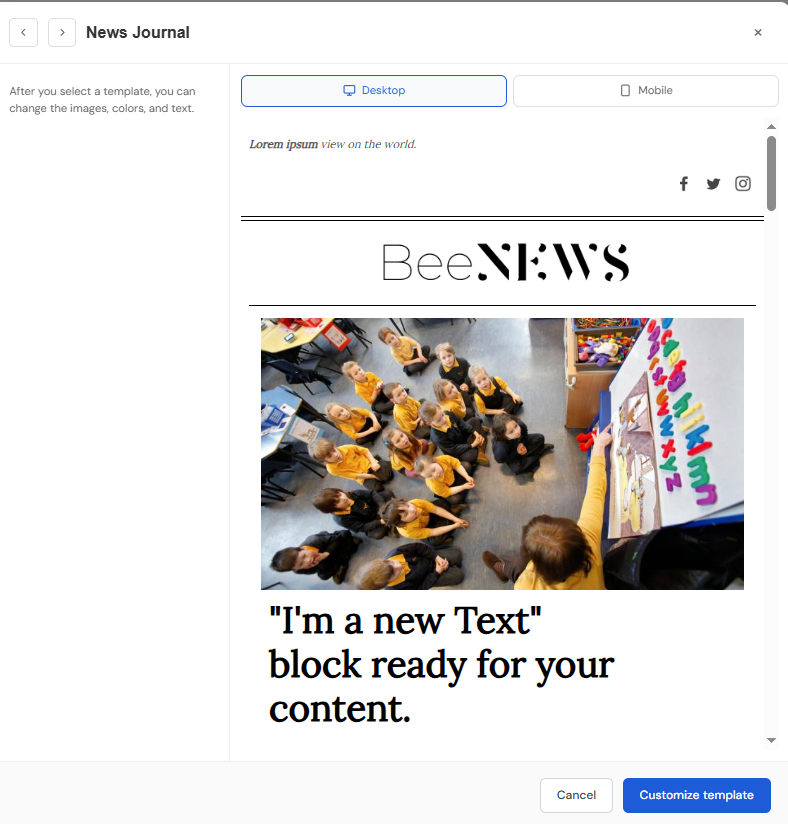
To edit the template click on Customize Template at the bottom of the preview window. Drag and Drop Editor will open and you can edit your template. For more details read How To Use Drag And Drop Editor.
Create Regular Campaign
To create a Regular campaign go to Campaign -> Create Campaign> Regular
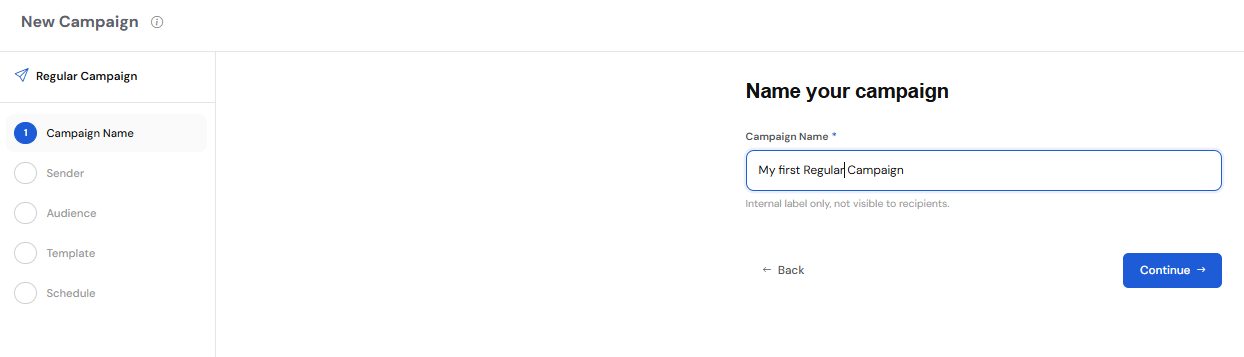
Step 1
In the dialog, that will open, fill in the campaign name on the right side. ( You can check campaign steps from the checklist on the left side ) Then click Continue.
Step 2
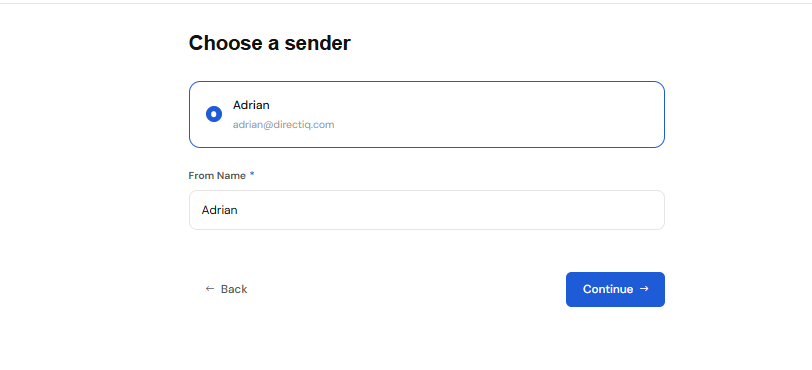
Next, you need to set the sender's address and name. You can select an address from the drop-down list, which contains a list of all your verified senders. The sender address needs to be verified before you can continue. Read more about How To Manage Email Sender Addresses.
Step 3
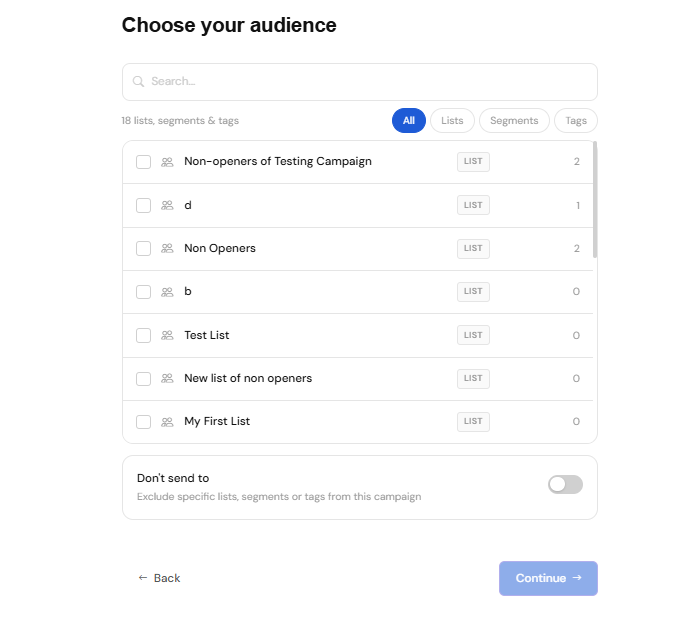
In this step, you need to select campaign recipients (Audience). Please, read more about How To Set Up Campaign Recipients.
The default language of the campaign is English. You can change it to one of 6 other languages, available in the system, in this step. To do this select the language you want to use at the bottom of the dialog.
Step 4
To select the email template click on the desired template and on the right side you will see the template preview, if you want to see the preview in full then hover over the template and click on the "eye" icon, if you want to edit the template click on the "pencil" icon.
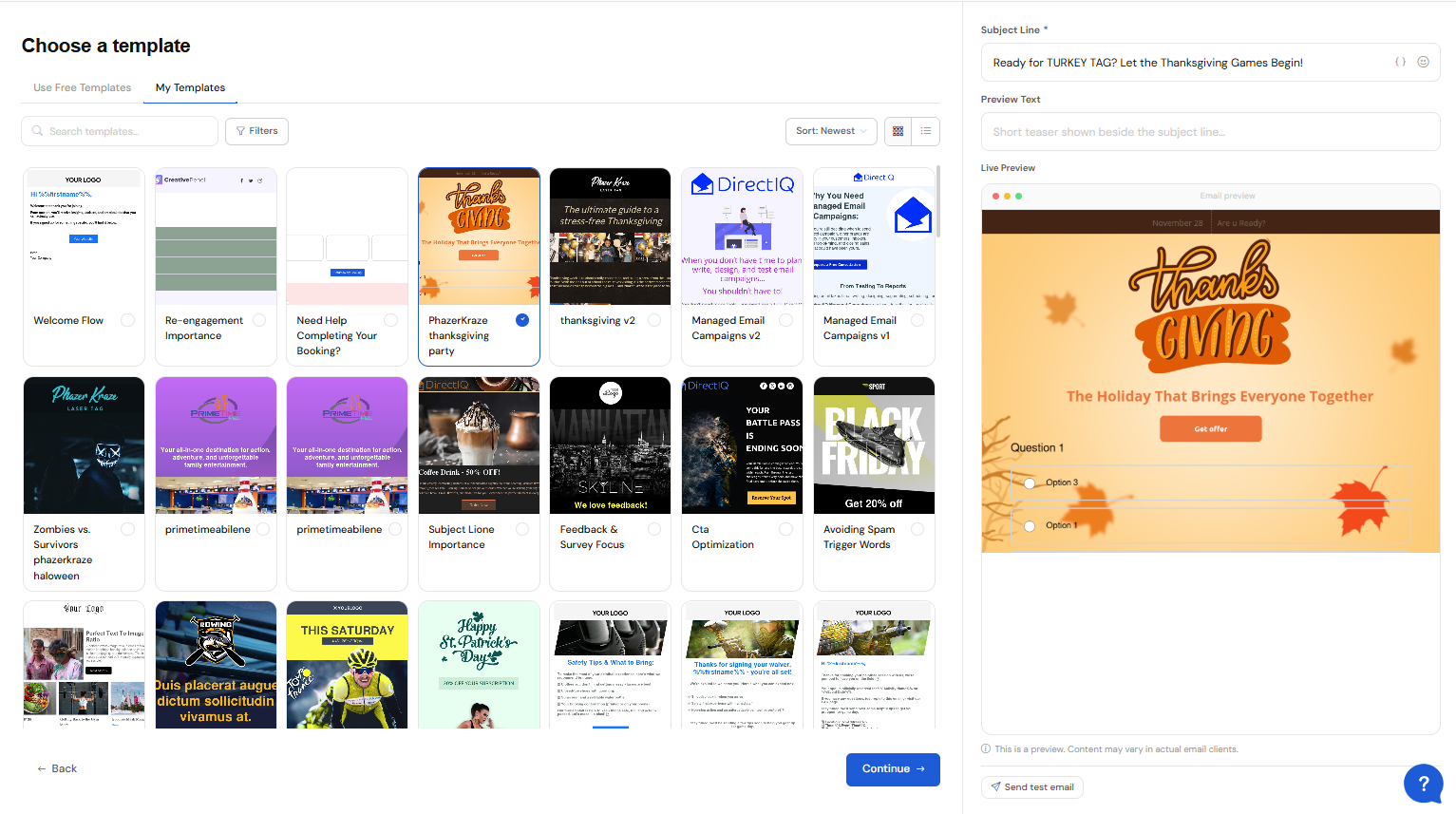
In this step, you need also to fill in Subject Line. Optionally write preheader, and then click Continue
Step 5
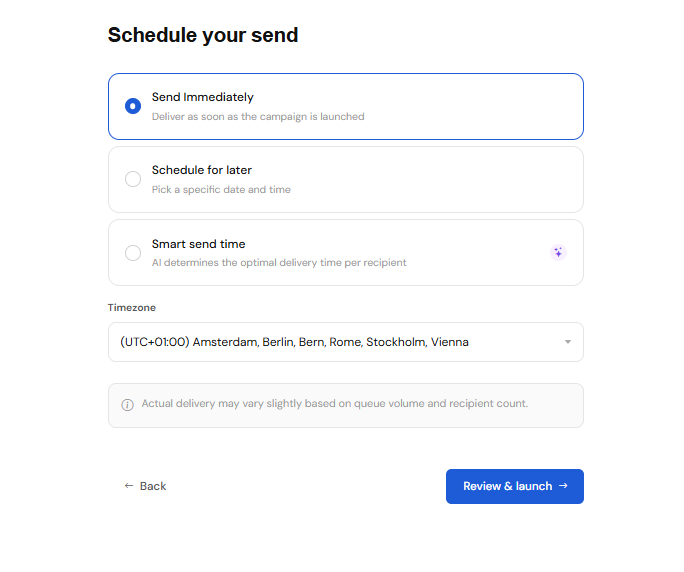
In the end, you need to set up a date and time, when the campaign will be sent. There are 3 options to send the campaign : Send immediately, Schedule for later and Smart send time
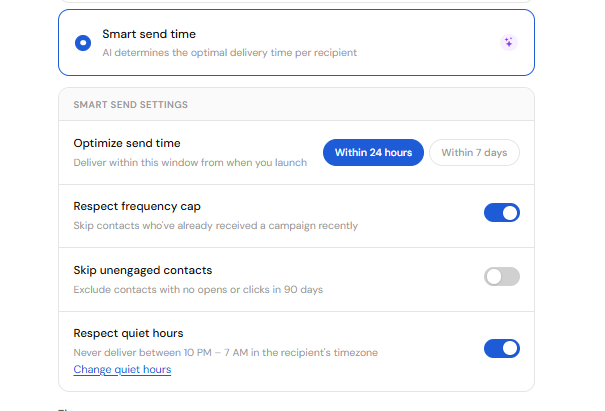
Note: Smart send Time allows you to optimize sending by either setting a time window, respect a frequency in which a customer can receive emails, skip people who didnt open any campaign in the last 90 days or respect quiet hours (time people are supposedly at sleep)
After all the steps have been completed, check the information you entered. If necessary, you can change it. If all the data is correct, finish creating the campaign by clicking Review & launch.
Review reports
In order to see the detailed information and effectiveness of your marketing campaign, DirectIQ offers a lot of different reports. Go to Campaigns ->All Campaigns, select the campaign that has already been sent and click Reports at the right of the campaign card.

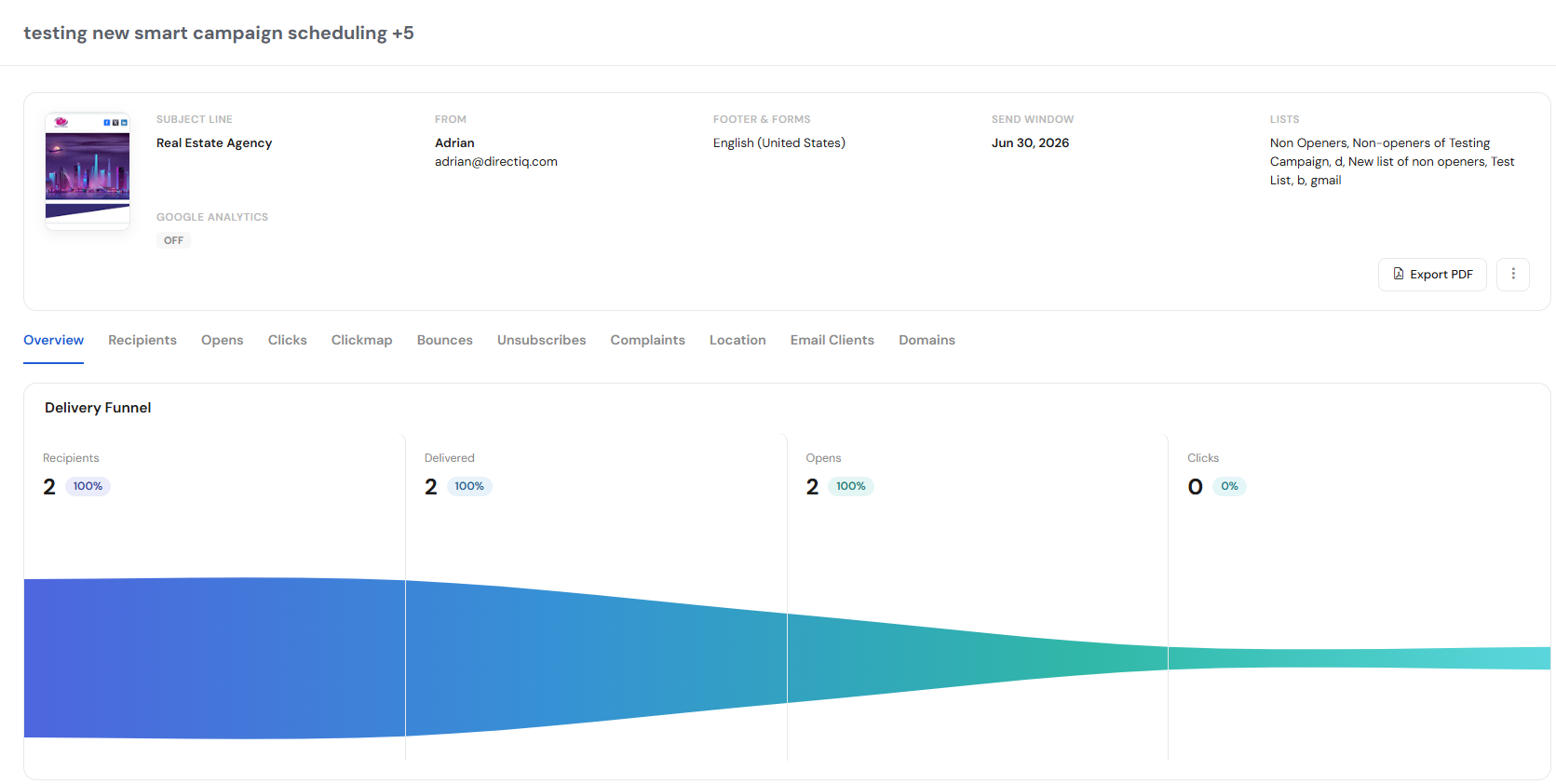
An Overview page with campaign detailed information open. Here you can see the campaign subject line, sender, delivered date and time, footer and form language, template. DirectIQ also allows to review campaign recipients, opens, clicks, unsubscribe contacts, spam complaints, hard bounces, opens by email clients, social, location, domains. To do this select the corresponding tab at the top of the page.