Webhooks in DirectIQ allow you to receive real-time event notifications whenever something happens in your email activity. Instead of manually checking reports or polling an API, DirectIQ automatically sends data to your configured endpoint as soon as an event occurs.
From the Integrations → Webhooks dashboard, you can view all configured webhooks, their status (Active or Inactive), and creation date. In the example shown, a webhook endpoint is active and ready to receive transactional email events.

To create a webhook, click Create New Webhook in the top-right corner and provide the endpoint URL.
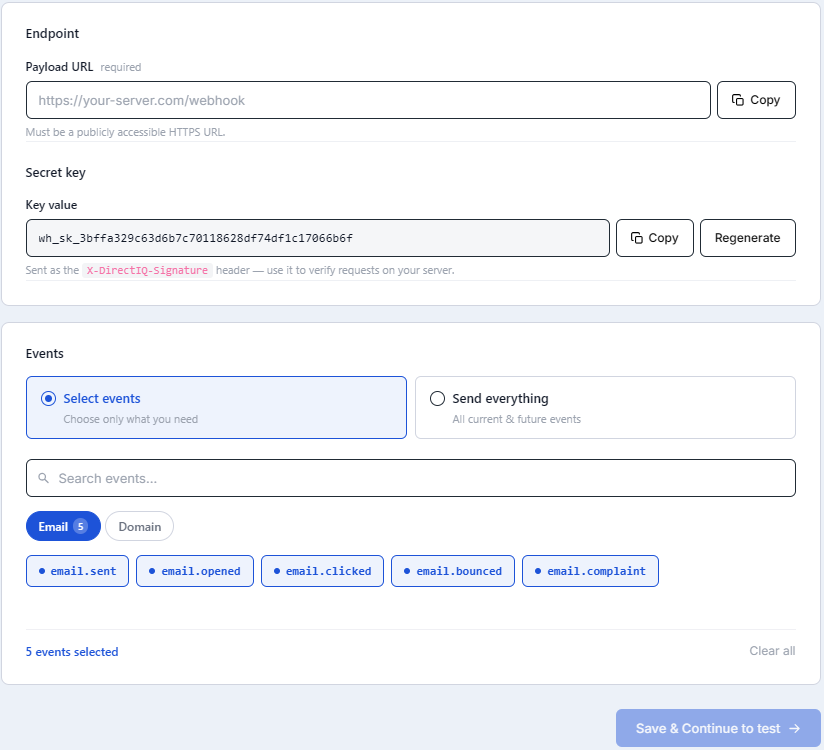
The Seecret key is already generated and if you re-generate it you must update it in your implementation also.
The events you can choose from for the emails are : email.sent, email.opened, and email.bounced.email.complaint, and for the domain are : domain.unverified, domain.verified
You can either choose specific events to send or even select all.
Once saved, the webhook becomes active immediately and starts receiving events such as email.sent, email.opened, and email.clicked.
Existing webhooks can be edited using the three-dot (⋮) menu on the right side of each row. This allows you to update the endpoint URL without recreating the webhook.
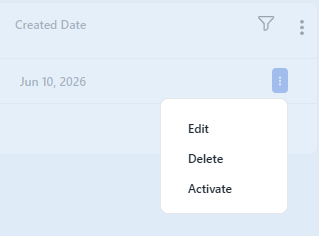
You can also activate/deactivate a webhook temporarily if you want to pause event delivery without deleting the configuration. Deactivated webhooks remain visible in the list and can be reactivated at any time.
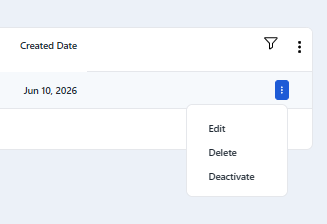
If a webhook is no longer needed, it can be deleted permanently from the same menu. Once deleted, event delivery stops immediately and cannot be restored.
All webhook events include a shared TransactionalId, which allows you to track the full lifecycle of an email across multiple events (sent → opened → clicked → bounced → complaint).
See Also: