In DirectIQ, by default, there are three fields, that can be in contact: email, first and last names. If your contacts have other characteristics, that you want to save in the system, then you can create custom fields. Custom fields in contacts are what allow marketers to target campaigns and run reports based on specific contact characteristics. These fields are typically defined during the creation of the subscription forms used to gather contacts, but can also be assigned while uploading contacts via text or Microsoft Excel files, cut and paste, or 3rd party services.
You can view the list of all fields on the Contacts -> Contact Fields page.
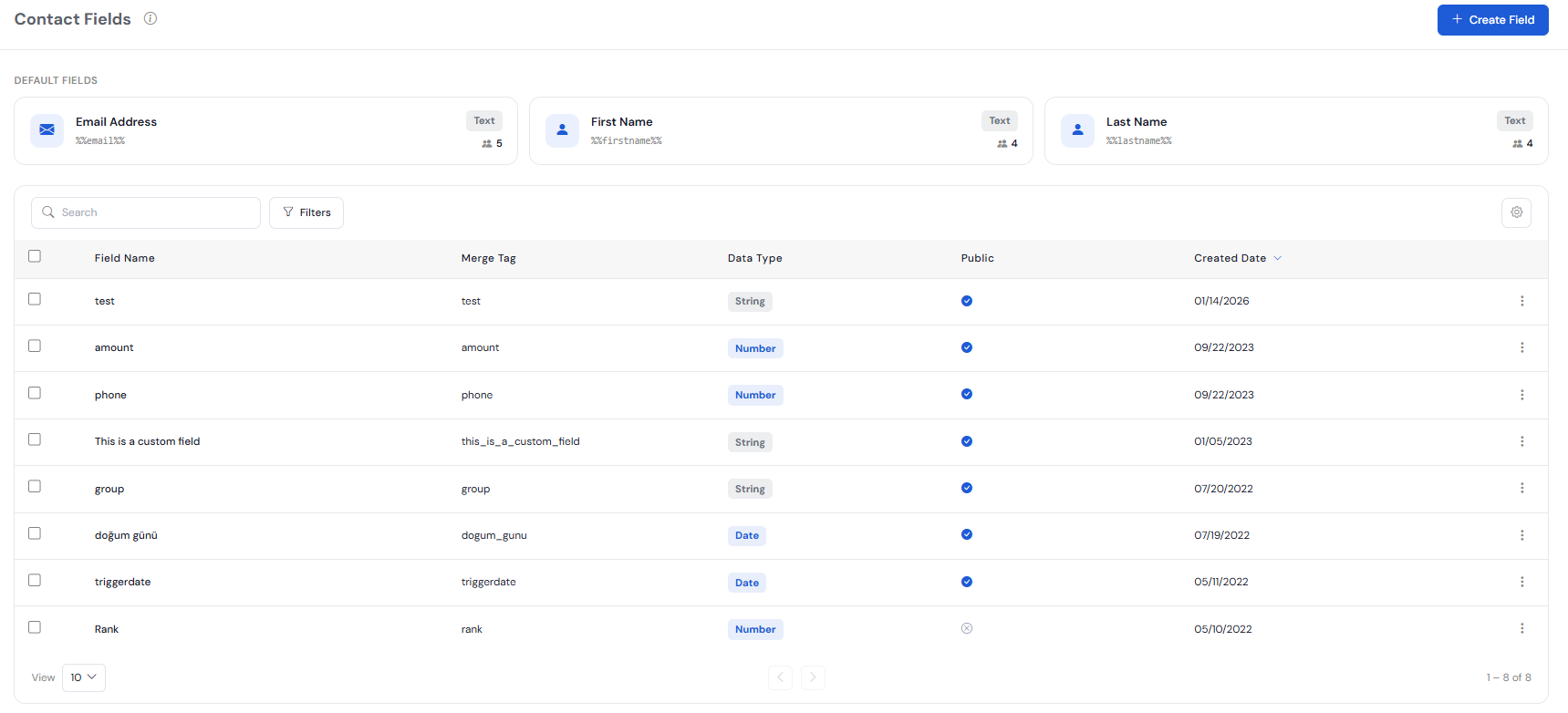
There are two field types on the page. Deffault Fields: the default system fields and all the custom fields across your contact lists.
Custom Fields: only custom fields across your contact lists.
The table contains information about fields name and type, provides necessary data to reference the fields in email templates and displays them in subscription or contact information forms. There are also columns with buttons for managing fields.
Field Name: Lists the field names used across all the lists in your My List library.
Merge Tag: Lists the content tags, that can be used to dynamically insert the associated field names in the list you're using in a given email template.
Data Type: In DirectIQ for custom fields such data types are allowed: Text, Number, Date. The system field Email Address has an Email data type.
Public: Sows the field status either public or hidden
Created date: Lists the dates the fields were created
See also:
Creating Custom Field